


Can You Play Dota 2 on Mac, Linux and Steam Deck? Performance and Setup (2026)

Yes — Dota 2 runs on Mac, Linux, and Steam Deck. Valve maintains native clients for all three platforms, so you do not need Windows to play ranked. What you do need is a realistic picture of what each platform delivers: how many frames you will actually get, what breaks, and which workarounds the community has already solved for you.
This guide covers every platform separately — installation, hardware requirements, FPS expectations by device, and the known issues you will run into. If you are migrating from Windows or picking up Dota 2 for the first time on a non-Windows machine, this is your full reference.
Does Dota 2 Run on Mac, Linux, and Steam Deck?
Dota 2 officially supports three operating systems: Windows, macOS, and Linux. Steam Deck runs SteamOS, which is a Linux distribution, so it inherits full Linux support out of the box. None of these platforms require Windows emulation or compatibility layers to run the game — Valve ships a dedicated native build for each.
Here is the short answer per platform before we go deep:
| Platform | Support Status | Install Method | Needs Proton? |
|---|---|---|---|
| macOS (Intel) | Native, fully supported | Steam client | No |
| macOS (Apple Silicon M1-M4) | Native via Rosetta 2 | Steam client | No |
| Linux (Ubuntu, Arch, Fedora, Mint) | Native Linux client | Steam client | Optional |
| Steam Deck | Officially “Playable” (Valve rating) | Pre-installed Steam | No |
One clarification worth making: on Steam Deck, Dota 2 does NOT use Proton. It runs the native Linux build directly, which means the same client that runs on Ubuntu or Arch runs on your Deck. Proton exists for games that have no Linux port — Dota 2 is not in that category.
The “Playable” rating from Valve (rather than “Verified”) comes down to the interface: some menus use small text that is hard to read on the 7-inch screen, and a few UI flows expect mouse precision. The game itself is fully functional.
Dota 2 on Mac (2026)
Dota 2 has had a native macOS client for years, and the experience in 2026 is significantly better than it was even two years ago. The renderer was reworked to use Metal (Apple’s native graphics API) via MoltenVK — a layer that translates Vulkan calls into Metal calls. The result is better GPU utilization compared to the older OpenGL path.
Requirements and Compatibility
Minimum macOS version required is 10.14 Mojave. Anything older will not run the current Steam client. For a playable experience:
- macOS 11 Big Sur or newer is recommended
- 4 GB RAM minimum; 8 GB or more for stable performance
- Intel Macs from 2016 onwards run the game adequately on low-medium settings
- Apple Silicon Macs (M1 through M4) run the game via Rosetta 2 — there is currently no native ARM build, but Rosetta 2 overhead on Dota 2 is low enough that most players do not notice it
Installing Dota 2 on Mac
- Download Steam from steampowered.com and install the macOS version
- Log in or create a Steam account
- Search for Dota 2 in the Steam store (it is free to play)
- Click Install — the launcher will select the macOS build automatically
- Once installed, launch the game from your Steam library
No additional configuration is needed. The game will default to the Metal renderer on compatible hardware, which is the correct setting for all current Macs.
Mac FPS Expectations by Chip
Performance varies significantly depending on whether you are on Intel or Apple Silicon, and which generation of chip you have. The numbers below are based on community benchmarks at 1080p with medium settings:
| Mac Hardware | Expected FPS (Medium, 1080p) | Teamfight Stability | Notes |
|---|---|---|---|
| Intel Core i5/i7 (2017-2019), integrated graphics | 25-45 FPS | Drops to 15-25 | Low settings only; playable but not comfortable |
| Intel Mac with AMD or Nvidia GPU | 50-70 FPS | 40-55 FPS in fights | Stable enough for casual ranked |
| M1 / M2 base (8-core GPU) | 60-90 FPS | 45-65 FPS in fights | Very playable; occasional drops in heavy teamfights |
| M1 Pro / M2 Pro (16-core GPU) | 80-110 FPS | 60-80 FPS in fights | Comfortable ranked experience |
| M1 Max / M2 Max / M3 Max | 100-130 FPS | 70-100 FPS in fights | Still drops during extreme teamfights — a known Mac limitation |
| M4 (base and Pro) | 100-140 FPS | 80-110 FPS in fights | Best Mac experience currently available |
One pattern you will notice across all Mac hardware: FPS stability during five-vs-five teamfights is always lower than in the laning phase. This is not unique to Macs — it is the nature of Dota 2’s engine during particle-heavy fight sequences — but Macs do show steeper drops than comparable Windows hardware due to the Rosetta 2 translation overhead and the MoltenVK layer.
If your FPS is consistently lower than the table above, the first thing to do is confirm you are running with the Metal renderer enabled. Go to Settings > Video and verify the rendering API is set to Vulkan (which routes to Metal on Mac). OpenGL mode is available but delivers noticeably worse performance.
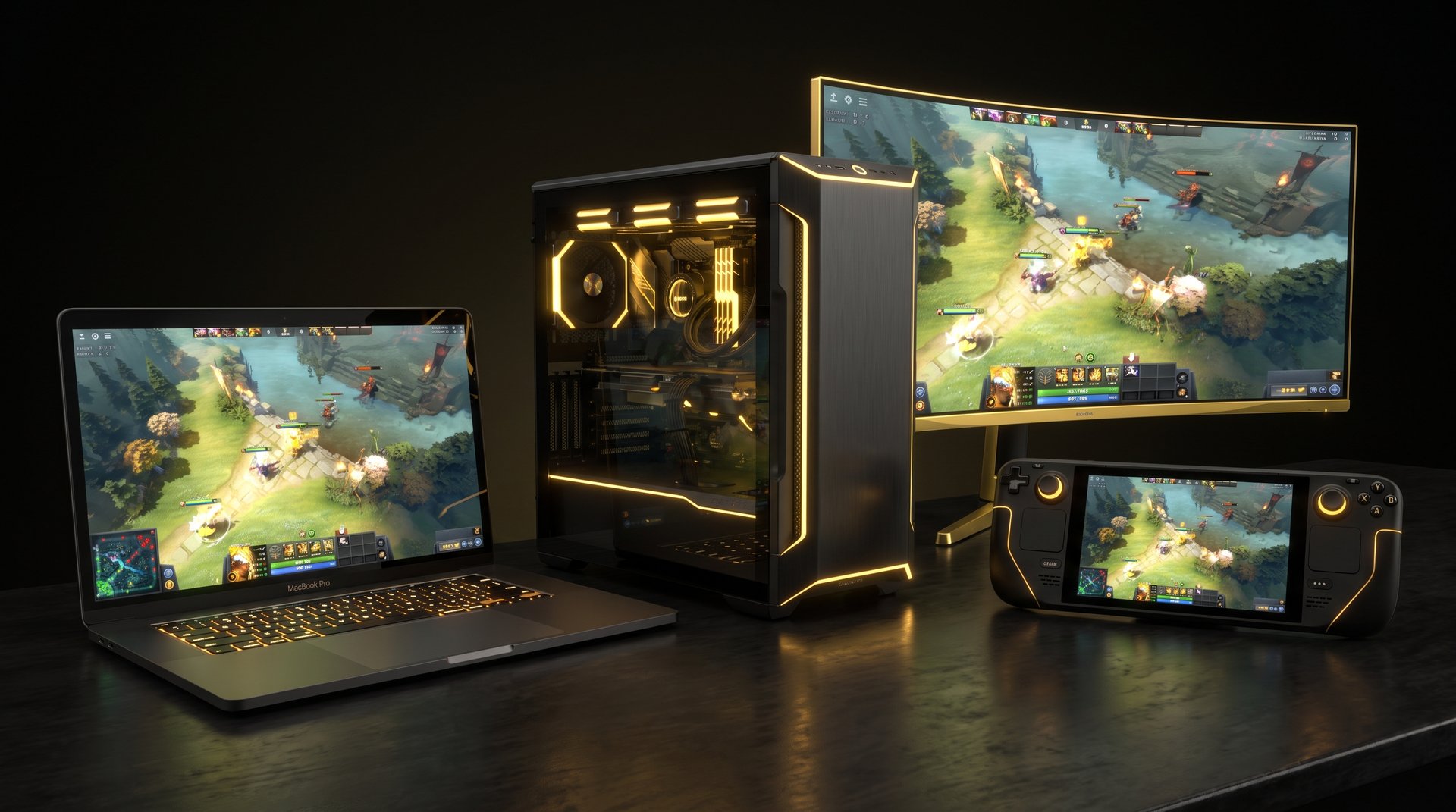
Known Mac Issues
A few issues come up consistently in the Mac community:
- Sudden FPS drops during teamfights: reported even on M1 Max and M2 Max hardware. Community reports suggest this is an engine-side issue with Dota 2’s particle system rather than a Mac-specific driver problem. No user-side fix exists; lowering particle settings partially reduces the severity.
- Rosetta 2 not natively compiled: there is no ARM-native Dota 2 build for Apple Silicon. The x86 binary runs well under Rosetta 2, but a native compile would improve performance further. Valve has not announced a timeline for this.
- Steam app not launching on older macOS: Steam itself dropped support for macOS 10.13 High Sierra in late 2023. If your Mac cannot upgrade past Mojave, verify your macOS version is at least 10.14.
Dota 2 on Linux
Linux support for Dota 2 is as mature as Mac support — arguably more so, since Valve has used Linux as the foundation of SteamOS for years. The native Linux client receives the same updates as the Windows version and runs the Vulkan renderer without any translation layer.
Supported Distributions
Dota 2 does not restrict itself to a specific distro. Players run the game successfully on:
- Ubuntu 22.04 / 24.04 LTS — the most common choice; strong driver support
- Linux Mint — Ubuntu-based, identical compatibility
- Debian 12+ — stable, good for players who want a low-maintenance setup
- Arch Linux / Manjaro — rolling release; always current drivers, slightly higher setup overhead
- Fedora 40+ — good Nvidia driver support via RPM Fusion
- Pop!_OS — popular among gamers, pre-configured for gaming workloads
The one hard requirement is 64-bit architecture. 32-bit Linux is not supported. Beyond that, any reasonably current distro with Steam installed will run Dota 2 without issues.
Installing Dota 2 on Linux
- Install Steam from your distro’s package manager or from steampowered.com’s .deb/.rpm download
- In Steam settings, go to Steam > Settings > Compatibility and enable Steam Play for all titles (this activates Proton for games that need it — Dota 2 will still use its native client)
- Find Dota 2 in your library and click Install — Steam detects the native Linux build automatically
- No Proton version needs to be selected for Dota 2
Native Linux vs Proton — Which is Better?
For Dota 2 specifically, the native Linux client is the default and generally the better choice. Some users on ProtonDB have reported that on certain GPU and driver combinations, forcing Proton actually improved stability — particularly with older AMD cards. If your native performance is inconsistent, it is worth testing Proton as an alternative:
- Right-click Dota 2 in your Steam library
- Select Properties > Compatibility
- Check “Force the use of a specific Steam Play compatibility tool”
- Select Proton 8.0 or the latest stable Proton version
For most modern hardware running Ubuntu or Fedora, the native client will perform identically or better than Proton. The cases where Proton helps are specific to older driver versions and certain GPU families.
Linux FPS Expectations
On matching hardware, Linux performance is very close to Windows. Valve’s investment in the Steam runtime and Vulkan driver quality means the gap has narrowed to a few percent in most scenarios:
| GPU Class | Expected FPS (High, 1080p) | vs Windows Estimate |
|---|---|---|
| Entry GPU (GTX 1060 / RX 580 equivalent) | 60-90 FPS | Roughly equal to Windows |
| Mid GPU (RTX 3060 / RX 6600 equivalent) | 120-180 FPS | Within 5-10% of Windows |
| High GPU (RTX 4070 / RX 7800 XT equivalent) | 180-250+ FPS | Effectively identical |
Known Linux Issues
- GNOME notification bug: some GNOME desktop users report a blank or black screen after a match ends. Restarting Dota 2 fixes it. This is a known interaction between Dota 2’s notification hooks and the GNOME session, not a driver issue.
- Audio crackling on some pipewire setups: PipeWire (the default audio server on modern Fedora and Ubuntu 24.04) can cause audio artifacts. Adding
PIPEWIRE_LATENCY=256/48000to your Steam launch options resolves this for most users. - Nvidia proprietary driver requirement: if you are running an Nvidia GPU on Linux, you must use the proprietary Nvidia driver (535 series or later recommended). The open-source Nouveau driver does not support Vulkan adequately for Dota 2.
Dota 2 on Steam Deck
Steam Deck is the most interesting platform for Dota 2 because it is both the most convenient and the most limiting. You can carry your ranked games anywhere, but you are working with a 7-inch touchscreen, a 60Hz display cap, and a 15-watt TDP power budget that constrains sustained GPU output.
Official Support Status
Valve rates Dota 2 as “Playable” on Steam Deck — not “Verified.” The distinction matters: a Verified game works perfectly with the controller, all text is readable on the small screen, and no additional setup is needed. A Playable game works but has rough edges. For Dota 2, those rough edges are:
- The default UI scale is designed for 1080p monitors; some text is small on the 7-inch 800p screen
- Certain shop and hero select menus require tapping small elements
- The in-game settings panel has a dedicated “Steam Deck” layout option — enabling it helps with text size
None of these limitations prevent you from playing ranked games. They are friction, not blockers.
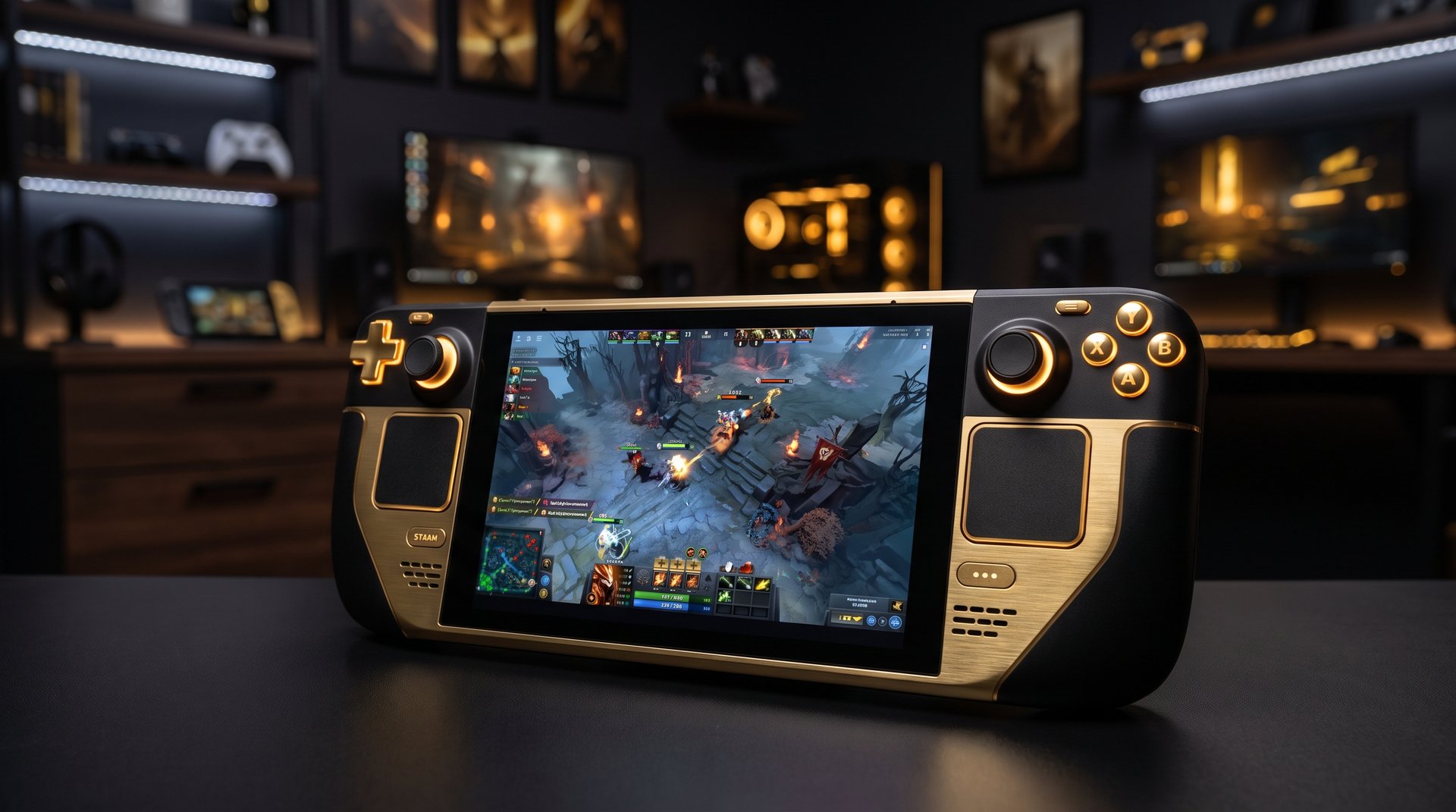
Steam Deck Controls Setup
Dota 2 has a built-in Steam Deck control configuration that you can activate from the settings menu. The default layout uses:
- Left stick: hero movement (hold to move)
- Right stick: camera pan or radial menu access
- Right touchpad: acts as a precision mouse — this is essential for clicking on units and the minimap
- Face buttons (A/B/X/Y): mapped to abilities 1-4 by default
- Shoulder buttons: item slots and camera centering
- Back paddles (if available): useful for ultimate ability and courier commands
The touchpad mouse is the most important part of the control scheme. Players who try to play Dota 2 on Steam Deck without learning to use the touchpad for precision inputs will struggle with last-hitting, targeted abilities, and item purchases. Give yourself 2-3 unranked games to get comfortable with it before going into ranked.
You can also import community control configurations from the Steam Input overlay. Several high-rated Dota 2 deck configs exist that reassign bindings based on player feedback — worth browsing before you finalize your layout.
Steam Deck Performance and FPS
The Steam Deck’s display is 60Hz, which creates a natural FPS ceiling of 60 for the standard model and 90 for the OLED variant (which supports variable refresh rate up to 90Hz). Here is what you can realistically expect:
| Game Phase | Standard Deck FPS | Steam Deck OLED FPS | Settings Recommendation |
|---|---|---|---|
| Pre-game (hero select, loadouts) | 55-60 FPS | 60-75 FPS | Medium-High |
| Early game (laning phase) | 55-60 FPS | 60-80 FPS | Medium-High |
| Mid game (small skirmishes) | 45-60 FPS | 50-70 FPS | Medium |
| Late game (five-vs-five teamfights) | 30-50 FPS | 40-60 FPS | Low-Medium |
| Mega creeps siege | 25-45 FPS | 35-55 FPS | Low |
The practical takeaway: early and mid game on Steam Deck feels smooth and competitive. Late-game teamfights with heavy particle effects will drop frames. For a strategy game like Dota 2, 35-45 FPS during a teamfight is uncomfortable but playable — the game does not require the sub-50ms reaction windows that a first-person shooter does.
The most effective way to improve Deck stability is to cap your FPS at 40 via the Steam Deck performance overlay (Quick Access menu > Performance). A locked 40 FPS often feels better than a fluctuating 30-55 FPS because the frame time is consistent. Some players also report that switching to Proton 8.0.4 via the compatibility settings improves stability in particle-heavy scenarios, even though the native client is the default.
Battery Life While Playing Dota 2 on Steam Deck
Dota 2 is one of the lighter loads a Steam Deck can handle compared to newer titles, but it is not as efficient as a 2D game. Expect:
- Standard Deck: roughly 2-2.5 hours per charge at medium settings
- Steam Deck OLED: roughly 3-3.5 hours per charge at medium settings
- Enabling the 40 FPS cap and setting the GPU clock to a lower profile extends battery by 30-45 minutes
Dota 2 games average 35-40 minutes. This means you can comfortably finish 3-4 games on the standard Deck and 4-5 games on the OLED on a single charge before a ranked session.
Platform Performance Summary
Here is a consolidated comparison for anyone weighing which non-Windows platform to use for ranked Dota 2:
| Platform | Peak FPS (Good HW) | Teamfight Stability | Setup Ease | Ranked Viability |
|---|---|---|---|---|
| Mac (M2 Pro+) | 100-130 FPS | Moderate drops | Easy (one click) | High |
| Mac (M1 base / Intel) | 60-90 FPS | Drops to 40-60 | Easy | Moderate |
| Linux (mid GPU) | 120-180 FPS | Very stable | Medium (drivers) | High |
| Steam Deck (standard) | 60 FPS cap | Drops to 30-50 | Very easy | Moderate |
| Steam Deck OLED | 90 FPS cap | Drops to 40-60 | Very easy | Moderate-High |
Linux with dedicated hardware is the closest non-Windows experience to Windows itself. Mac is a solid option for Apple Silicon owners with Pro or Max chips. Steam Deck is uniquely portable but has the most hardware constraints of the three.
Optimizing Performance on All Platforms
Regardless of platform, several settings directly impact your framerate in Dota 2. For a deep dive on all available launch options and console commands, see our companion guide on Dota 2 launch options and performance settings — it covers every flag that meaningfully changes FPS on any operating system.
For platform-specific recommendations:
Mac — Priority Settings
- Set Rendering API to Vulkan (routes to Metal automatically on Mac)
- Reduce Particle Quality to Medium or Low to limit teamfight drops
- Set Shadow Quality to Low — shadows are a major GPU load in Dota 2
- Enable “Limit FPS” and cap to 60 to reduce the severity of frame spikes
Linux — Priority Settings
- Confirm Vulkan is set as the renderer (check Settings > Video)
- Add the launch option
-vulkanexplicitly if the game defaults to OpenGL on your setup - Install mesa-vulkan-drivers or the appropriate Vulkan ICD for your GPU if not already present
- AMD GPU users: Mesa 23.0+ significantly improved Vulkan performance for Dota 2
Steam Deck — Priority Settings
- In the Steam Deck performance overlay, set a 40 FPS frame limit for consistent frame time
- Set GPU clock to 1000-1200 MHz (lower if you need battery life; higher for peak fights)
- In Dota 2 settings, set Texture Quality to Medium and Particle Quality to Low
- Enable the in-game Steam Deck layout option under Interface settings for better UI scaling
If you are serious about improving your rank after you have the game running well, the most efficient path is working on fundamentals with a structured learning approach. Our guide on the MMR boosting and climbing guide covers what actually moves the needle between brackets — hardware is only half the equation. You also want to understand the full Dota 2 system requirements for 2026 to make sure your setup is not the bottleneck holding you back.
Known Issues and Workarounds by Platform
Beyond the FPS numbers, each platform has specific issues that come up repeatedly. Here are the ones you are most likely to encounter and what to do about them:
| Platform | Issue | Workaround |
|---|---|---|
| Mac | FPS drops in teamfights (all chips) | Lower Particle Quality to Low; cap FPS at 60 |
| Mac | Game crashes on launch (rare) | Delete the game config file in ~/Library/Application Support/Steam/steamapps/; verify game files |
| Mac | No Apple Silicon native build | Runs via Rosetta 2 automatically; no action needed |
| Linux | Blank screen after match ends (GNOME) | Restart Dota 2 client; known GNOME notification interaction |
| Linux | Audio crackling (PipeWire) | Add PIPEWIRE_LATENCY=256/48000 to Steam launch options |
| Linux | Nvidia GPU: OpenGL fallback instead of Vulkan | Ensure nvidia-vulkan-icd is installed; add -vulkan launch option |
| Steam Deck | Framerate drops in late-game fights | Set 40 FPS cap via performance overlay; lower Particle Quality to Low |
| Steam Deck | Small UI text in menus | Enable Steam Deck layout in Dota 2 Interface settings |
| Steam Deck | Touch controls imprecise for shop | Use right touchpad as mouse; zoom into shop with touchscreen pinch |
Does Playing on Mac, Linux, or Steam Deck Affect Your MMR?
No. Dota 2 MMR is server-side and entirely platform-agnostic. You queue with the same player pool, play on the same servers, and earn the same MMR per win regardless of which operating system or device you use. A win on a Steam Deck counts identically to a win on a high-end Windows gaming PC.
The only indirect effect is performance: if your platform delivers significantly lower FPS than you are used to, your reaction times and micro-level play may suffer during fast teamfights. This is not a system limitation — it is a comfort issue. Most players adapt after a few sessions on a new platform.
If you are grinding MMR seriously and want to understand how the current system works, our guide on Dota 2 boosting services explains how players improve their rank through different approaches, and our breakdown of whether Dota 2 boosting is safe covers the risk side of the equation for anyone considering it.
For players who just want to get better faster after switching to a new platform, working with a coach who can pinpoint platform-specific habits (like camera control differences on Steam Deck, or adapting to slightly higher input lag on Mac) can shorten the adjustment period significantly. Our Dota 2 coaching service pairs you with high-MMR coaches who play across different setups.
Frequently Asked Questions
Ready to Climb Regardless of Platform?
Now that Dota 2 is running on your Mac, Linux machine, or Steam Deck — your MMR is waiting. Whether you need a fast rank boost to skip past bracket hell or want dedicated coaching to master the fundamentals, TeamSmurf’s Dota 2-only team has you covered.