

Dota 2 Ping and Chat Wheel Guide: Every Ping, Alt-Click Command and Hotkey

Dota 2 gives you more communication tools than almost any other competitive game — yet the average player uses maybe three of them. This guide is a complete technical reference: every ping type with its exact default hotkey, every alt-click shortcut and the message it generates, and step-by-step chat wheel customization. If you want to master the strategic side of communication, read our full Dota 2 communication guide. This page is the lookup table you bookmark when you need to know exactly which key does exactly what.
Whether you are trying to cut missing-hero callouts to one click, figure out how to broadcast your buyback status without typing, or build a chat wheel layout that covers the eight calls you make every game — the answer is in the tables below.
In This Guide
- Every Ping Type and Its Hotkey
- The Ping Wheel — How to Access All Pings
- Chat Wheel Setup and Customization
- Every Alt-Click Command — Complete Table
- Ctrl+Alt+Click Variations
- All Quick-Comm Hotkeys in One Place
- Rebinding Communication Keys
- Using Pings and Alt-Clicks Effectively
- Frequently Asked Questions
Every Dota 2 Ping Type and Its Default Hotkey
Dota 2 has eight distinct ping types available between the default Alt+click system and the chat wheel. Most players only use one or two — the basic attention ping and the occasional caution click. The full set covers virtually every tactical intent you need to communicate during a game without typing a word.
The key distinction to understand first: some pings generate a visual marker on the map and minimap for all teammates. Others generate a text message in the team chat log, or both. The table below separates these clearly.
| Ping Type | Default Hotkey / Access | Visual on Map | What It Communicates |
|---|---|---|---|
| Attention Ping (generic) | Alt + Left Click (on ground or minimap) | Yellow pulsing dot | “Look here” — draws team eyes to a location |
| Caution / Danger Ping | Alt + Left Click on an enemy hero unit, or via ping wheel | Red exclamation (!) | “Enemy here” / “Be careful” / “Missing” |
| Retreat / Get Back Ping | Chat wheel slot or custom bind (see settings) | X marker (red) | “Don’t go here” / “Back off now” |
| Help / Distress Ping | Alt + Left Click on your own hero | Crossed swords / alert | “I need help immediately” |
| On My Way Ping | Chat wheel slot | Arrow / confirm marker | “I acknowledge the plan and I’m moving there” |
| Move Here Ping | Chat wheel slot | Hand / pointer marker | “Come to this location” / “Group up here” |
| Attack Ping | Chat wheel slot | Attack indicator | “Focus this target” / “Engage here” |
| Vision / Enemy Spotted | Chat wheel slot | Eye symbol | “I have vision of an enemy at this spot” |
The Standard Ping (Alt + Left Click)
Alt + Left Click is the fastest ping in the game — one hand action, no menu navigation. Where you click determines the ping’s meaning to your team:
- Click on open ground or minimap: Generates a yellow attention ping. Use this for strategic callouts — “push this lane,” “Roshan is spawning here,” “meet here before we smoke.”
- Click on an enemy hero unit (on the map, not the portrait): Generates a caution/danger ping at that hero’s location. The most direct way to call a missing or dangerous hero.
- Click on your own hero: Generates a help/distress ping. Reserve this for genuine emergencies only — teammates learn to ignore it if you use it every time you take minor harassment.
- Click on the minimap: The same ping appears both on the terrain and on the minimap, ensuring all teammates see it regardless of camera position.
The Ping Wheel — Accessing All Ping Types
The ping wheel is a radial menu that gives you access to the full set of ping types without relying on chat wheel slots. To access it, hold Alt and hover over the area you want to ping — a small radial menu appears with selectable ping options. Move your cursor to the desired ping and release Alt to send it.
This is slower than a direct Alt + Left Click but gives you the caution, retreat, on-my-way, and other specialized pings without consuming chat wheel slots. Learning the ping wheel directions so you can select them by muscle memory is worth 30 minutes of practice — it makes the full ping vocabulary available at the cost of a half-second hold instead of a typed message.
Dedicated Ping Hotkey Bindings
You can bind individual ping types to dedicated keys in Options > Hotkeys > Communication. The relevant bindings are listed under “Pings” in the hotkeys menu. Many high-MMR players bind the caution ping and the on-my-way ping to keys near the movement cluster so they can send them mid-action. Suggested bindings that do not conflict with standard layouts:
- Caution/Danger ping: Ctrl + G or a mouse side button
- On My Way: Ctrl + F (not conflicting with standard item key if items are on Z/X/C)
- Retreat: Ctrl + B
The exact bind matters less than consistency — pick something reachable without lifting your hand from the QWER cluster and practice it until it is reflexive.
The Dota 2 Chat Wheel — Setup and All Options
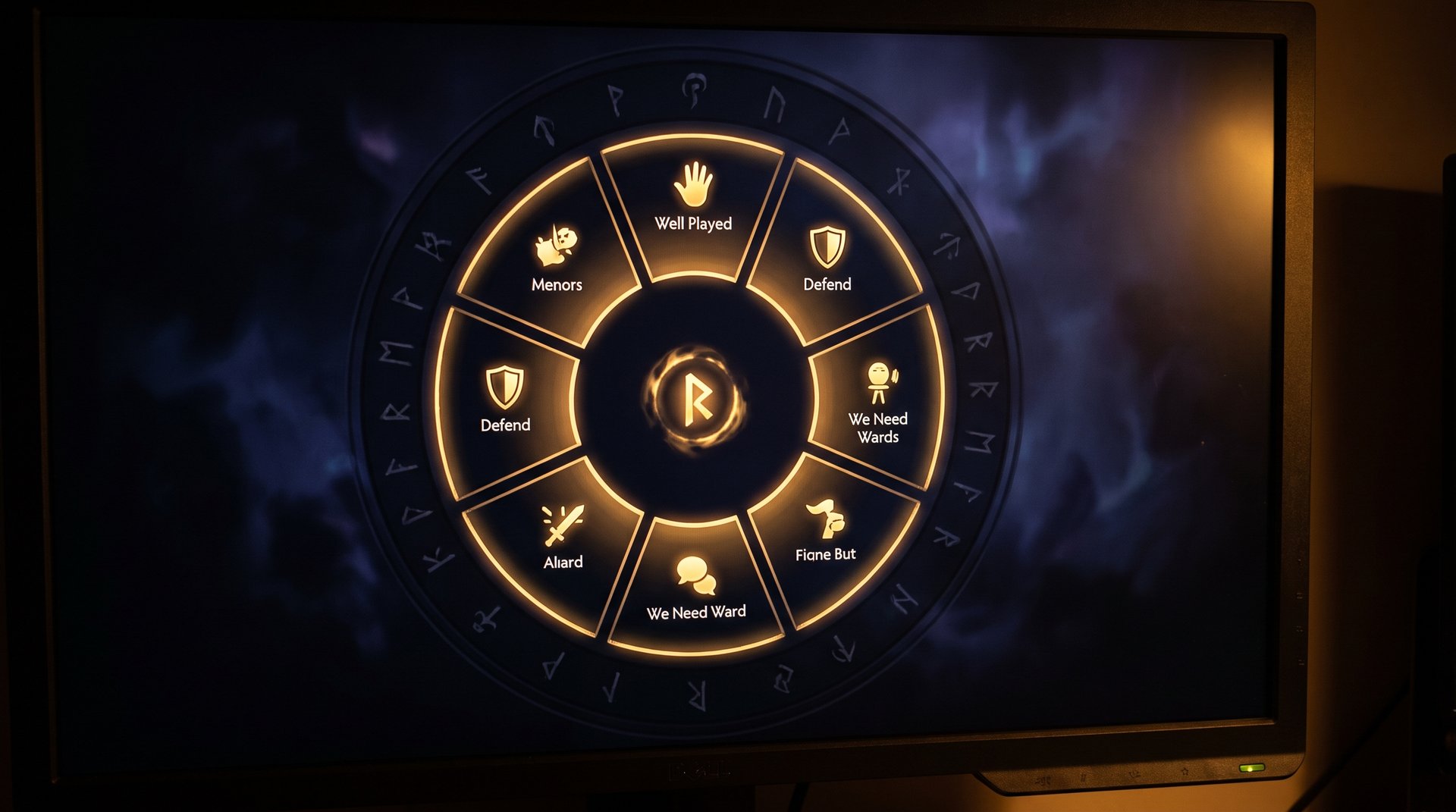
The chat wheel is your fastest route to a full-sentence message without opening the text chat. Press the chat wheel key (default: Y), move your cursor in one of eight directions, and release — the bound phrase sends instantly to the team chat. Messages in the chat wheel are automatically translated into each teammate’s client language, which makes it the only reliable communication method across regional server language barriers.
How to Customize the Chat Wheel
Open Settings > Options > Chat Wheel. Each of the eight slots (Up, Up-Right, Right, Down-Right, Down, Down-Left, Left, Up-Left) can be assigned any phrase from Dota 2’s phrase library. You have two separate chat wheels — Primary (Y by default) and Secondary (no default, must be bound manually under Hotkeys > Communication). Dota 2 also has a voice chat wheel for Battle Pass voice lines, bound separately.
To assign a phrase: click an empty slot in the chat wheel editor, then scroll through the phrase list on the right and click your choice. Phrases are grouped by category (Communication, Acknowledge, Reactions, etc.). Battle Pass voice lines appear as a separate category if you own them.
Recommended Chat Wheel Setup for Ranked Play
The best chat wheel for ranked maximizes the calls you need to make most often. Based on TeamSmurf coaching data, these are the highest-frequency communication needs in ranked games at all brackets:
| Slot | Direction | Recommended Phrase | Why This Slot |
|---|---|---|---|
| 1 | Up | “Missing!” or “Be careful!” | Most-used callout; Up is fastest natural cursor movement |
| 2 | Up-Right | “Get back!” | Second-fastest direction; urgent retreat call |
| 3 | Right | “Group up” | Pre-objective coordination |
| 4 | Down-Right | “Push now” | Objective pressure call |
| 5 | Down | “Smoke!” | Smoke gank initiation without typing |
| 6 | Down-Left | “Roshan” | Objective suggestion or Roshan warning |
| 7 | Left | “On my way” | Plan confirmation; rotation acknowledgment |
| 8 | Up-Left | “Well played!” or “Sorry” | Positive acknowledgment; reduces tilt |
Secondary Chat Wheel Setup
The secondary wheel covers less frequent but still important calls. Bind it to a key you can reach without lifting your hand — Caps Lock, a mouse button, or Ctrl + Y are common choices. Suggested phrases for the secondary wheel:
- “I need wards” — vision request from your carry or mid
- “Stun now!” — fight coordination callout
- “I’ll ward” — support signaling vision coverage
- “Wait for me” — preventing premature fights
- “Affirmative” — plan confirmation without occupying a primary slot
- “Current game is hard” — light tension break (situational)
- “I’ll stack” — jungle coordination for supports
- “Careful!” — general danger that doesn’t warrant a ping
Every Alt-Click Command in Dota 2 — Complete Reference
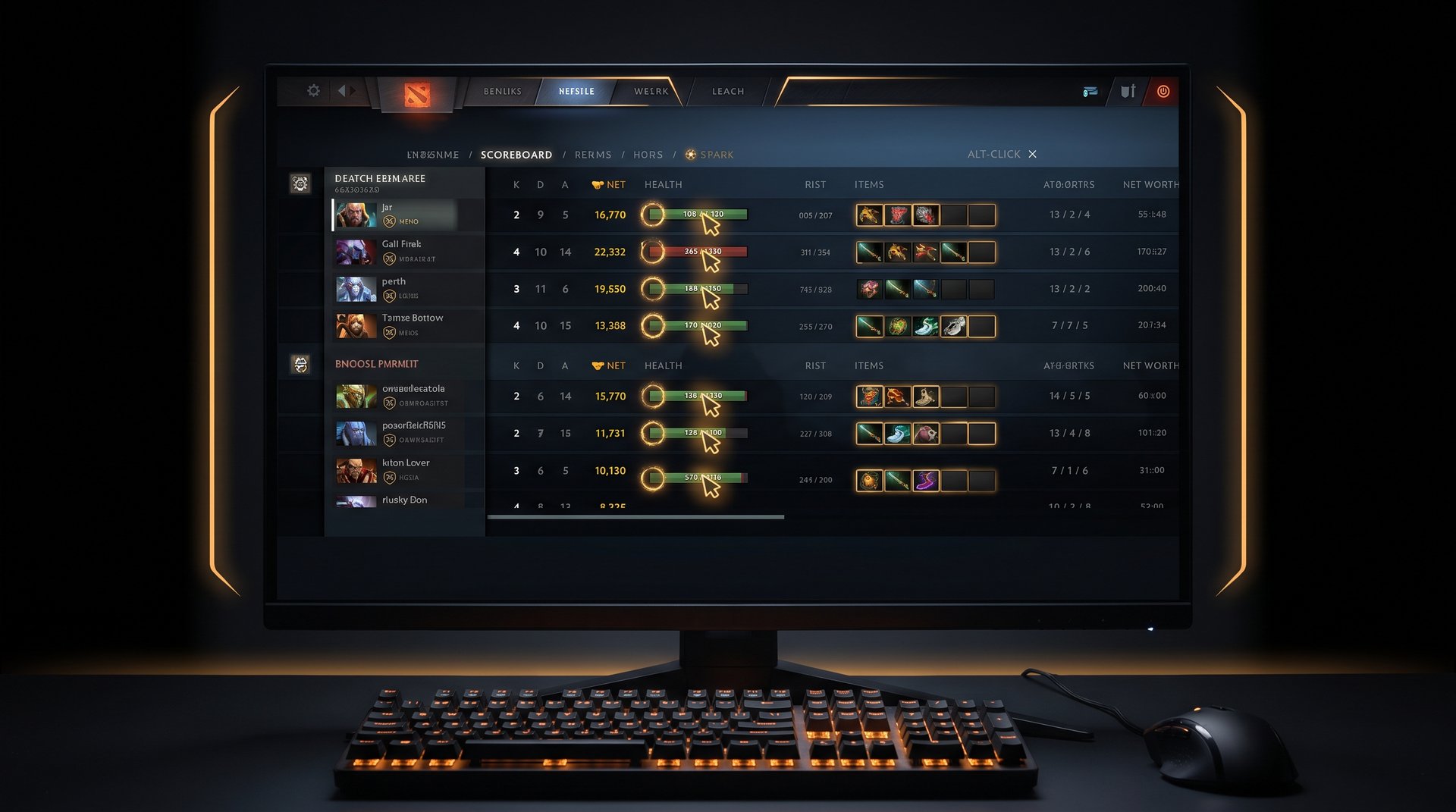
Alt-clicking UI elements generates instant text messages in team chat without you typing anything. This is the fastest way to share specific game-state information — cooldowns, gold amounts, resource bars, missing heroes — mid-action. The alt-click system is far more comprehensive than most players realize. The full table below covers every element you can alt-click and the message it sends.
Ability and Spell Alt-Clicks
| What You Alt-Click | Message Generated | Best Use Case |
|---|---|---|
| Your ability (off cooldown, enough mana) | “[Ability Name]: Ready” | Tell team your ult is available before a fight |
| Your ability (on cooldown) | “[Ability Name]: On cooldown (Xs)” | Explain why you cannot initiate; prevent premature fights |
| Your ability (not enough mana) | “[Ability Name]: Not enough mana (X/Y)” | Warn team you cannot cast a key spell |
| Enemy ability (when visible via enemy HUD) | “Enemy used [Ability Name]” | Track dangerous cooldowns (Black Hole, Ravage, etc.) |
| Scan ability button | “Scan: Ready” or “Scan: On cooldown (Xs)” | Coordinate scan use with supports |
| Glyph of Fortification button | “Glyph of Fortification: Ready” or cooldown | Tower defense coordination |
Resource Bar Alt-Clicks
| What You Alt-Click | Message Generated | Best Use Case |
|---|---|---|
| Your HP bar | “Health: X/Y (Z%)” | Show you are low and pulling back to heal |
| Your mana bar | “Mana: X/Y (Z%)” | Signal you cannot cast spells; request a clarity or arcane boots |
| Your gold display (top bar) | “Current Gold: X (Reliable: Y)” | Show buyback progress or near-item timing |
| Your respawn timer (when dead) | “Respawn in X seconds” | Coordinate late-game fights around your respawn window |
| Your buyback button | “Buyback: Ready” or “Buyback: Not ready (X gold short)” | Critical for high-ground defenses and Roshan attempts |
Item Alt-Clicks
| What You Alt-Click | Message Generated | Best Use Case |
|---|---|---|
| Item in inventory (off cooldown) | “[Item Name]: Ready” | Confirm BKB, Blink, or Ult Scepter is up |
| Item in inventory (on cooldown) | “[Item Name]: On cooldown (Xs)” | Explain BKB or Blink cooldown; delay teamfight |
| Item in quickbuy slot | “I need X gold for [Item Name]” | Ask team to stall before fighting while you finish a key item |
| Town Portal Scroll | “Town Portal Scroll: Ready” or “No TP” | Confirm you can teleport to a defense |
| Smoke of Deceit (in inventory) | “Smoke of Deceit: 1 charge” (or count) | Signal you have smoke for a gank without typing |
| Neutral item slot | “I have [Neutral Item]” or “No neutral item” | Coordinate neutral item distribution among roles |
| Ult Scepter / Aghanim’s Shard (in inventory) | “[Item Name]: Ready” | Confirm upgraded ability is available |
Hero Portrait and Scoreboard Alt-Clicks
| What You Alt-Click | Message Generated | Best Use Case |
|---|---|---|
| Enemy hero portrait (top bar) | “[Hero Name]: Not visible” or last known location | Fastest missing-hero call — faster than typing “ss mid” |
| Allied hero portrait (top bar) | Highlights that hero for teammates | Draw team attention to an ally’s position or status |
| Enemy item visible in HUD (enemy in range) | “Enemy has [Item Name]: Ready / On cooldown” | Track enemy BKB, Blink, or key item status during fights |
| Courier (when selected) | Courier status message | Alert team if courier is in danger or delivering items |
Timer and Clock Alt-Clicks
| What You Alt-Click | Message Generated | Best Use Case |
|---|---|---|
| Game clock (top center) | “Current Time: XX:XX” | Note timings in chat for reference (Roshan window, power spike) |
| Roshan death timer (when visible) | Roshan respawn timing | Coordinate Roshan attempt window with team |
Ctrl+Alt+Click Variations
Many alt-click targets have a Ctrl+Alt+Click variant that changes the message context from “here is my status” to “I am requesting something.” These are underused but useful for support play.
| What You Ctrl+Alt+Click | Message Generated | Use Case |
|---|---|---|
| Your own ability | “Use [Ability Name] on me” or request variant | Ask a support to cast a buff or heal on you |
| Allied ability (visible) | Request message for that ability | Request a specific spell from a teammate mid-fight |
| Item (in allied inventory visible) | Request to use item on you | Ask carry to share an item temporarily or use it |
Experiment with Ctrl+Alt+Click on different UI elements to discover additional combinations — the system is context-sensitive and some targets generate unique messages not covered in official documentation.
All Quick-Communication Hotkeys in One Place
The table below consolidates every default communication hotkey in Dota 2. Use this as a reference when setting up a fresh install or auditing your bindings. All of these are rebindable in Options > Hotkeys.
| Action | Default Hotkey | Location in Hotkeys Menu |
|---|---|---|
| Open team chat | Enter | Chat |
| Open all chat | Shift + Enter | Chat |
| Open chat wheel (primary) | Y | Communication |
| Open chat wheel (secondary) | None (must assign) | Communication |
| Open voice lines chat wheel | Alt + Y (if unlocked) | Communication |
| Standard attention ping | Alt + Left Click | N/A (mouse action) |
| Ping on minimap | Alt + Left Click (on minimap) | N/A (mouse action) |
| Open ping wheel (radial) | Hold Alt, hover target, drag cursor | N/A |
| Caution ping (direct bind) | None default (assign in Pings) | Communication > Pings |
| Retreat ping (direct bind) | None default (assign in Pings) | Communication > Pings |
| On My Way ping (direct bind) | None default (assign in Pings) | Communication > Pings |
| Push-to-talk voice | None default (must assign) | Audio > Voice Chat |
| Alt-click (any UI element) | Hold Alt + Left Click | N/A (mouse action) |
| Ctrl+Alt click (request) | Hold Ctrl + Alt + Left Click | N/A (mouse action) |
| Mute a player | Click mute icon in Tab scoreboard | N/A (UI action) |
| Mute all chat | Settings toggle (not hotkey) | Social > Chat |
| Open scoreboard | Tab (hold) | Interface |
Customizing and Rebinding Communication Hotkeys
The default communication bindings in Dota 2 leave several important actions unbound entirely — the secondary chat wheel and individual ping type hotkeys both need manual assignment. Here is how to set each one up efficiently.
Rebinding the Chat Wheel
Open Options > Hotkeys > Communication and locate “Chat Wheel.” The primary wheel defaults to Y, which works for most players. If you find yourself accidentally opening the chat wheel during fights, rebind it to a key less likely to be pressed mid-action — Caps Lock or a mouse side button are common alternatives.
To bind the secondary chat wheel, find “Secondary Chat Wheel” in the same Communication section and assign it. A good pairing: primary on Y, secondary on Ctrl + Y, or primary on Y, secondary on a dedicated mouse button.
Binding Individual Ping Types
Under Options > Hotkeys > Communication, scroll down to the “Pings” subsection. Here you can bind individual keys to specific ping types without going through the chat wheel or ping wheel. Players who make specific calls repeatedly — supports who use the “On My Way” confirmation constantly, for example — benefit from a direct bind. Suggested setup that does not conflict with standard QWER + ZXCV item layout:
- Danger/Caution ping: Ctrl + E
- On My Way: Ctrl + R
- Retreat: Ctrl + T
- Group Up: Ctrl + G
Setting Up Push-to-Talk
Voice chat in Dota 2 defaults to open mic if you have a microphone enabled — meaning all background noise broadcasts to your team. Open mic is considered poor etiquette in ranked play. Set up push-to-talk before playing with voice enabled:
- Open Settings > Audio
- Set “Voice Chat” to Push-to-Talk
- Bind the push-to-talk key in Hotkeys > Audio section
- Use a mouse side button or a thumb key if your keyboard allows it — the goal is a key that does not conflict with movement or abilities
The best settings for communication tuning — including voice, hotkeys, and network optimization — are covered in detail in our Dota 2 best settings guide alongside the full video and renderer setup.
Using Pings and Alt-Clicks Effectively in Ranked
Having the full toolkit is only valuable if you use it correctly. These principles separate productive ping users from players whose teammates mute their pings.
The Three Rules for Pings That Get Followed
1. Ping early, not after. A danger ping 4 seconds before an enemy rotation appears is communication. A ping the moment your ally dies is noise. The entire value of a warning ping is in the advance notice — if the enemy is already there, the ping serves no purpose. Develop the habit of pinging your read of where an enemy is moving, not their confirmed position.
2. Maximum three pings per event. One focused ping communicates clearly. Two pings can confirm urgency. Three pings in quick succession is the outer limit before your teammates’ mute impulse kicks in. Never spam-ping — the game even penalizes excessive pinging by reducing ping volume temporarily. One strong, well-placed ping is always more effective than six panicked ones.
3. Alt-click before teamfights, not during them. The highest-value alt-clicks are pre-fight status calls: your ultimate’s cooldown, your BKB timer, your gold-to-item. These shape whether your team initiates at all. Alt-clicking during the fight is distracting and usually too late to change decisions. Build the habit of broadcasting key statuses during the 10 seconds before a potential engagement.
The Five Alt-Clicks Worth Making Habitual
Out of the full alt-click library, five actions produce disproportionate team value in ranked games. These are the ones worth deliberately practicing until they become automatic:
- Alt-click your ultimate before any fight. “Ravage: Ready” or “Black Hole: On cooldown (32s)” changes your team’s decision on whether to engage. Do this automatically whenever the team starts grouping.
- Alt-click enemy portraits when they go missing. Instead of typing “ss mid,” click the enemy mid’s portrait in the top bar. Instant, one-action missing call that cannot be delayed by typing speed.
- Alt-click your quickbuy item. “I need 400 gold for BKB” tells your team exactly when you will be fight-ready. Eliminates arguments about “why did we fight without BKB.”
- Alt-click buyback in late game. Before any high-ground siege or Roshan attempt, broadcast your buyback status. Teams that know buyback states make dramatically better late-game decisions.
- Alt-click enemy abilities after they use them. “Enemy used Black Hole” starts a 3-minute coordination window. Your team knows Enigma has no ult — they should fight aggressively right now.
What Not to Do
- Do not ping repeatedly to show frustration. The game shows all pings by name in the chat log. Four rapid pings on a teammate who made a mistake reads as flaming, not communication.
- Do not use the help ping casually. “Help” pings trigger a distress response. If you use them for minor situations, your team learns to ignore them and you lose the signal when you genuinely need it.
- Do not alt-click to passive-aggressively note low health. “Health: 234/2400 (10%)” alt-clicked after a bad teamfight is not communication — it is a complaint. Save resource bar alt-clicks for useful pre-fight or pre-rotation context.
The communication guide at teamsmurf.com/communication-guide/ covers shot-calling, role-specific communication responsibilities, and voice chat strategy for players who want to go deeper on coordination beyond hotkeys and alt-clicks.
If your current bracket consistently generates communication breakdown games and you want to sidestep that while working on your mechanics, our Dota 2 MMR boost service moves you to a bracket where ping-level coordination is more consistent. Our Dota 2 coaching sessions specifically include communication audits — identifying where your ping habits are helping versus hurting your coordination.
For the broader mechanical picture of what separates brackets, see our MMR boosting guide and our breakdown of is Dota 2 boosting safe. If you want to review the best Dota 2 boosting services, the comparison table there is the most current available.
Frequently Asked Questions
Upgrade Your Coordination — and Your Rank
Knowing every hotkey is only one piece. If your team keeps making uncoordinated decisions despite your pings, a Dota 2 coaching session identifies the specific breakdown points — communication habits, positioning, decision timing — holding your rank in place. For faster bracket progression while you build skills, our MMR boost service puts you in games where coordination is the baseline, not the exception.


