


Dota 2 Voice Chat Fix: Mic, Party Voice, Team Voice

Your microphone works fine in Discord. It works in Windows settings. But the moment you load into a Dota 2 match, nobody can hear you — or you cannot hear your party at all. Voice chat in Dota 2 has always been finicky, and it gets worse after patches, driver updates, or Windows changes.
This guide covers every common cause and fix: mic not detected in the Dota 2 client, the difference between party voice and team voice (and why only one might be broken), Steam audio driver conflicts, in-game audio settings, and how to test your mic without waiting for a real match. Most players fix the problem in under five minutes once they know where to look.
In This Guide
Why Dota 2 Voice Chat Stops Working
Dota 2 voice chat breaks for a handful of reasons, and they are not always obvious because the game does not tell you which one applies. Before going through every fix step by step, it helps to understand the four most common failure points.
Wrong audio device selection. Dota 2 does not always follow Windows default audio settings. If you have more than one audio device — a headset, a webcam with a built-in mic, a virtual cable from Discord or OBS — Dota 2 may be pointing at the wrong one. This is the most common cause and the easiest fix.
Windows microphone privacy settings. Since Windows 10, apps need explicit permission to access your microphone. If Dota 2 does not have that permission, no amount of in-game settings will fix it. This is a one-time check but people often overlook it.
Party voice and team voice are different channels with separate keybinds. Many players discover they have been holding the wrong key. Party voice (default: V) only reaches players in your premade group. Team voice (default: Shift+V) reaches your whole team. If you play solo and your party has voice enabled but team voice is off, you may hear nobody at all.
Steam audio system conflicts. Dota 2 routes its voice through Steam’s audio layer. Exclusive mode on your audio device, outdated drivers, or conflicts with virtual audio software (like Voicemeeter, VB-Cable, or NVIDIA RTX Voice) can cut the signal before it reaches the game.
| Symptom | Most Likely Cause | Where to Fix |
|---|---|---|
| Mic bar does not move in audio test | Wrong input device or Windows permission blocked | Settings > Audio or Windows Privacy |
| You can hear others but they cannot hear you | Wrong output selected on their end or your push-to-talk key wrong | Check your keybind + input device |
| Party members silent, strangers audible | Party voice channel disabled or wrong keybind | Settings > Audio > Party Voice key |
| Voice worked before last Windows update | Audio driver update or exclusive mode changed | Device Manager or Sound Properties |
| Voice works in Dota but breaks after 10 minutes | Virtual audio device dropping the connection | Disable enhancements or close conflicting apps |
| No voice at all, even in the audio test | Steam audio not initialised or game files corrupted | Verify game files via Steam |
Fix 1: Mic Not Detected in Dota 2
When Dota 2 cannot see your microphone, the audio test bar in settings stays flat no matter how loudly you speak. Work through these three checks in order — most people find the problem at step one.
Check Windows Sound Settings First
Open Windows Settings and go to System > Sound > Microphone Privacy. Confirm that “Allow apps to access your microphone” is turned on. Scroll down to the list of apps and check that “Steam” is also allowed. Without this, Dota 2 (which runs through Steam) cannot read your microphone at the operating system level.
Next, right-click the speaker icon in your taskbar and open Sound Settings. Under Input, confirm your headset microphone is listed and set as the default input. If you see “Microphone (HD Audio Microphone)” rather than your headset name, Windows may be using the wrong device. Click the device, go to Properties, and make sure it is enabled and not muted. Set the input volume to 80 or above.
Set the Right Input Device in Steam
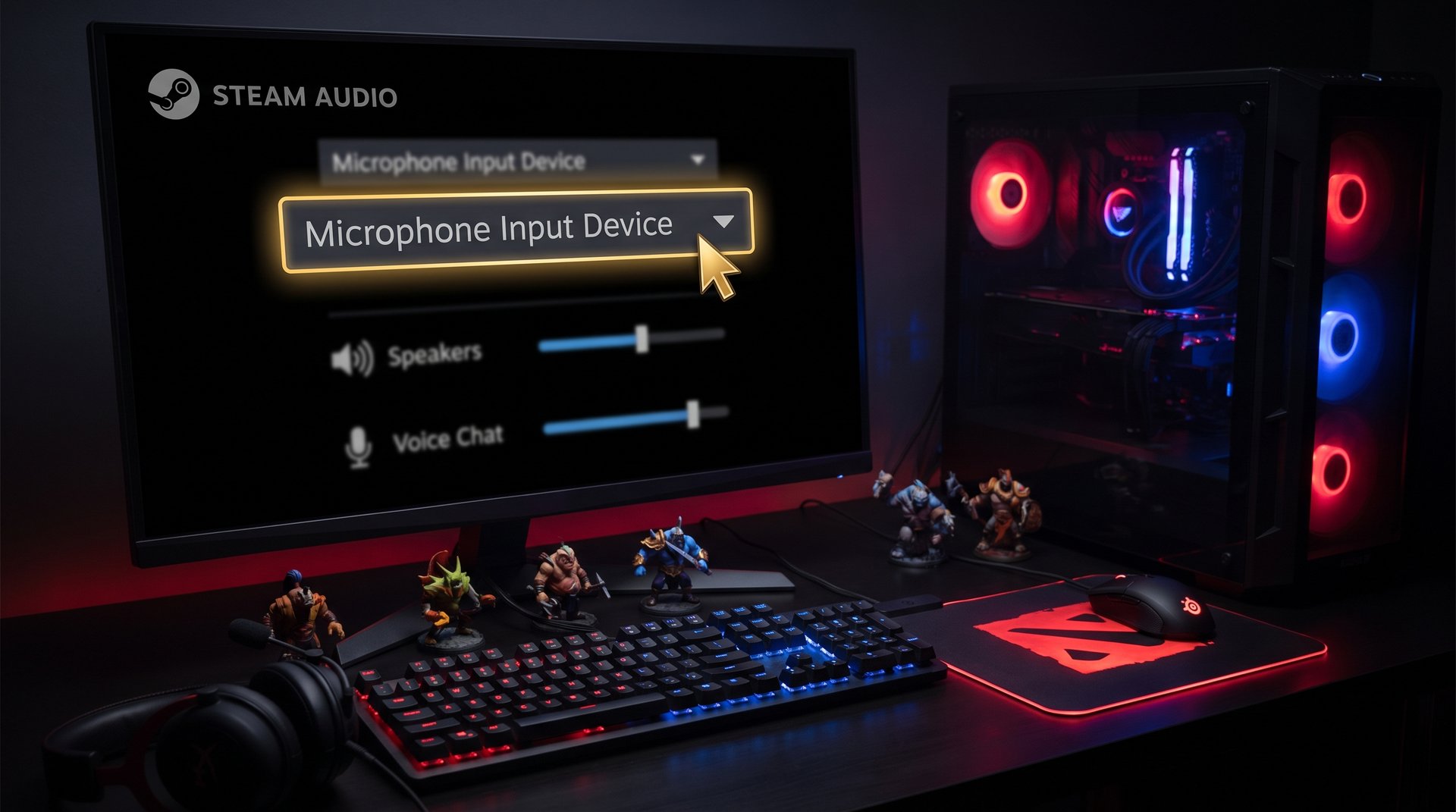
Steam has its own audio configuration that is separate from Windows defaults. Open Steam, go to Steam > Settings > In-Game, and look for “Voice Input Device.” Change it from Default to your specific headset microphone. This is the setting Dota 2 reads, not the Windows default, so even if Windows is correct, Steam may still be pointing at the wrong device.
While you are here, run the microphone test in Steam settings (click the icon next to the device name). If the bar moves, Steam can hear you and the problem is inside Dota 2 settings. If the bar stays flat, the issue is at the Steam or Windows level.
Allow Dota 2 Microphone Access in Windows
Some Windows versions block individual apps rather than all apps. Search for “Microphone privacy settings” in the Windows search bar. Under “Choose which Microsoft Store apps can access your microphone,” check that the toggle is on. More importantly, scroll to “Allow desktop apps to access your microphone” — this covers Steam and Dota 2, which are not Store apps. If this is off, turn it on, restart Steam, and test again.
Party Voice vs Team Voice in Dota 2 — What the Difference Actually Means
Dota 2 has two separate voice channels, and this is one of the most misunderstood parts of the game’s communication system. Many players have functioning hardware but only one channel working, so they think voice chat is broken entirely.
Party Voice (Default Key: V)
Party voice only transmits to players in your premade group. If you queue solo or you are matched with strangers, holding V does nothing — the channel has nobody in it. This is by design: party voice is a private channel so coordinated groups can talk freely without strangers listening.
If you solo-queue and try to use V, you will hear nothing and nobody will hear you. This is not a bug. Switch to the team voice key instead. If you want to communicate with your whole team, team voice is the only channel that reaches them.
Team Voice (Default Key: Shift+V)
Team voice reaches every player on your side of the map: all five teammates, whether they are in your party or not. This is the channel you want for solo-queue communication. The reason many players do not use it is simply that the key is awkward — Shift+V while your left hand is managing spells and items is not natural.
You can rebind team voice to a more accessible key. Go to Settings > Hotkeys > Communication and change the “Voice Chat — Team” binding to something you can reach quickly. Many players use B (not bound to anything useful by default) or a side mouse button.
How to Enable Both Channels in Settings
Open Dota 2 and go to Settings (the gear icon) > Audio. Scroll down to the Voice Chat section. You will see three things: Voice Input Device, Voice Output Device, and the Party Voice and Team Voice volume sliders. Make sure both sliders are above zero — if either is at zero, that channel is muted entirely regardless of your keybind or hardware.
The Push-to-Talk mode (recommended) means you must hold your voice key to transmit. Open Mic mode transmits everything your mic picks up continuously, which most teammates will mute quickly because of background noise. If voice chat “just started working” at a random moment, you may have accidentally switched from push-to-talk to open mic. Stick with push-to-talk.
If you want to control who interrupts your focus, check out the guide on how to mute players in Dota 2 — muting specific voices keeps the communication you want without the noise you do not.
Steam Audio Driver Issues That Break Voice Chat
Audio drivers are the layer between your physical microphone hardware and every application that uses it. When they are outdated, corrupted, or configured badly, the signal can stop at the driver level before it ever reaches Dota 2 or Steam.
Update or Roll Back Your Audio Driver
Open Device Manager (Win+X > Device Manager), expand “Sound, video and game controllers,” right-click your audio device and choose “Update driver.” Let Windows search automatically. If voice chat broke after a Windows Update, this is often because the update included a generic Microsoft audio driver that replaced your manufacturer-specific one. In that case, go to the manufacturer’s website (Realtek, AMD High Definition Audio, NVIDIA, or your headset brand) and download the latest driver directly.
If you recently updated your driver and voice chat stopped working, try rolling back: right-click the device in Device Manager > Properties > Driver tab > Roll Back Driver. This is especially useful if a Windows Update silently updated your audio stack.
The Exclusive Mode Problem
Exclusive mode lets one application take complete control of your audio device, preventing any other app from using it. When Dota 2 or Steam uses exclusive mode on your microphone, other apps cannot access it at the same time — but more commonly, another app (Discord, a browser tab, OBS) claims exclusive mode first and blocks Dota 2 from getting a signal at all.
To disable exclusive mode: right-click the speaker icon in your taskbar > Open Sound Settings > More sound settings > go to the Recording tab > right-click your microphone > Properties > Advanced tab > uncheck “Allow applications to take exclusive control of this device.” Apply and test. This single change fixes voice chat for a large number of players who run Discord and Dota 2 simultaneously.
Virtual Audio Devices and Conflicts
If you use Voicemeeter, VB-Cable, NVIDIA RTX Voice, or similar virtual audio routing software, these create additional audio devices that can confuse Steam and Dota 2. The game may be selecting the virtual device instead of your actual microphone. Open Dota 2 Settings > Audio and look at the Voice Input Device dropdown — if you see a virtual device name there, switch it to your physical headset. You can still run the virtual software in the background; just make sure Dota 2 is pointed at the correct physical input.
In-Game Audio Settings
Even with hardware and Windows configured correctly, Dota 2’s own settings can block voice chat. These are the settings that specifically affect voice transmission in-game.
Voice Input Volume
Go to Settings > Audio > Voice Input Volume. This slider controls how sensitive the game is to your microphone input. If it is below 50, your voice may not trigger the transmission threshold, especially in push-to-talk mode. Set it between 70 and 90 for most headset microphones. USB headsets with good preamps can go lower; cheaper headsets with quiet output may need it at 100.
There is also a “Voice Input Device” dropdown here, separate from the Steam setting. This is the device Dota 2 uses directly. Even if Steam is configured correctly, Dota 2 may still show “Default Device” here — change it to your specific headset name for reliability.
Voice Output Device
The Voice Output Device setting determines which device plays other players’ voices. If it is set to a device you are not wearing (for example, your desktop speakers instead of your headset), you will hear teammates but through the wrong output. Set this to the same device as your main audio output. Many players who say “I can’t hear anyone” have simply never checked this setting.
Push-to-Talk vs Open Mic
Open Mic (where you transmit continuously) is rarely the right choice in Dota 2. Any background noise — a fan, a keyboard, ambient sound — will go out to your teammates constantly and you will likely be muted by all five of them within the first minute. Push-to-talk is reliable: hold V (party) or Shift+V (team) while speaking, release when done. If your push-to-talk key is awkward to hold, rebind it as described in the party voice section above.
How to Test Your Mic in the Dota 2 Client
You do not need to wait for a real match to confirm your microphone is working. Dota 2 has a built-in test that gives you immediate feedback.
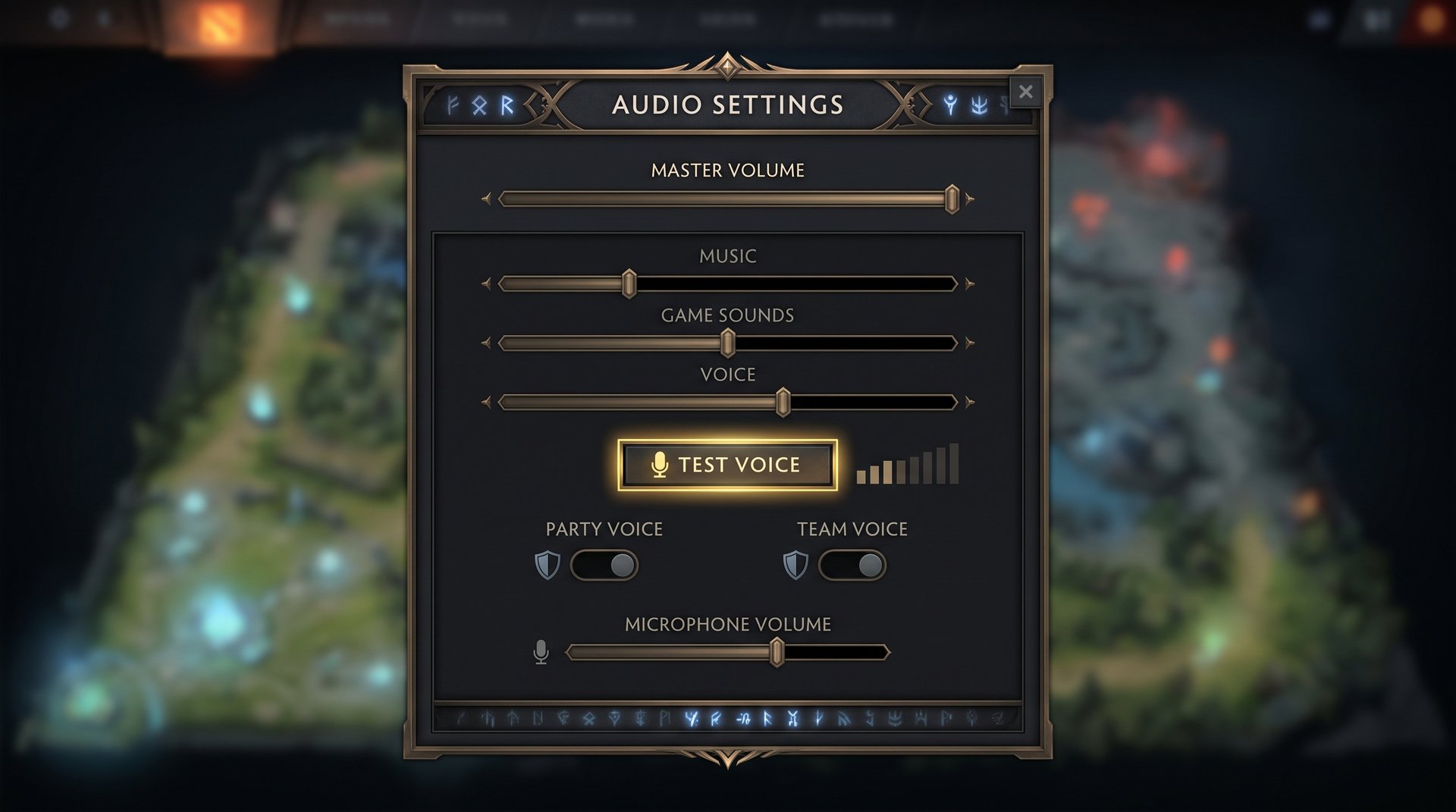
Open Dota 2 and go to Settings > Audio. Scroll to the Voice Chat section. You will see a “Voice Input Test” button or a bar next to your Voice Input Device. Hold your push-to-talk key and speak. The bar should rise and fall with your voice level. If it moves but is low, increase your Voice Input Volume. If it does not move at all, the issue is in Windows permissions or the wrong device is selected.
There is also a recording test inside the Steam client itself: open Steam > Steam > Settings > In-Game > click the microphone icon. If Steam’s test shows a working signal but Dota 2’s test does not, the problem is in Dota 2’s own Audio settings, specifically the Voice Input Device selection. Go back to the Audio settings page and check that the Voice Input Device is set to your specific headset, not “Default Device.”
After confirming the mic works in the audio test, join a practice lobby and speak. The voice indicator (a small microphone icon next to your name in the top-left) should light up when you hold your push-to-talk key. If the indicator lights but teammates cannot hear you, the issue is on their end — they may have you muted or their voice output volume is at zero.
If you encounter connection problems launching into a match — for example, the game hangs on “Searching for Game Coordinator” — that is a separate issue from voice chat. Check the guide on fixing the Dota 2 Game Coordinator error if that is blocking you from getting into games at all.
Advanced Fixes for Persistent Voice Chat Problems
If the standard fixes above have not worked, the problem is likely one of these four causes. Each is a bit more involved but still fixable without technical expertise.
Disable Audio Enhancements
Windows audio enhancements — noise cancellation, bass boost, loudness equalization — can interfere with voice transmission. They are applied at the driver level and can muffle or completely cut your microphone signal before it reaches any app. To disable them: open Sound settings > Recording tab > right-click your microphone > Properties > Enhancements tab > check “Disable all enhancements.” If your audio device does not have an Enhancements tab, you are likely using a third-party control panel (Realtek HD Audio Manager, ASUS Sonic Studio, Nahimic) — open it and turn off all microphone processing settings.
Close Background Apps Using the Mic
Open Task Manager (Ctrl+Shift+Esc) and look at the processes list while Dota 2 is running. Apps like Discord, Zoom, OBS, browsers with active tabs that request mic access, and communication apps can all hold the microphone and prevent Dota 2 from accessing it. If you are using Discord for your party already, consider routing all voice through Discord and turning voice chat off in Dota 2 entirely — this is a common and reliable solution for premade groups.
Closing and reopening Dota 2 after shutting down competing apps forces the game to re-acquire the audio device. Many players fix intermittent voice chat simply by ensuring Steam and Dota 2 are the first audio application to open after a fresh Windows boot.
Verify Game Files via Steam
Corrupted game files can break voice chat even when everything else is correct. Right-click Dota 2 in your Steam library > Properties > Local Files > Verify Integrity of Game Files. This checks every file against Steam’s master copy and replaces anything corrupted or missing. The process takes two to five minutes. After it completes, restart Dota 2 and test voice again. This fix is most relevant when voice chat worked before and broke suddenly without any obvious change.
Check Your VAC Status and Account Restrictions
Players with active communication bans in Dota 2 have their voice chat disabled by the game. This is not a hardware or settings issue — the ban blocks transmission at the server level. Check your Dota 2 conduct summary (in-game menu > Profile > Conduct Summary) to see if you have an active communication ban. If you do, the only fix is waiting for it to expire and improving your behavior score over time.
Improving your rank and MMR stability is one of the best ways to land in games with players who actually communicate. The MMR boosting guide covers how the ranking system works and what moves players up through the brackets, which directly affects matchmaking quality. Higher-bracket players are significantly more likely to use voice chat effectively. For a comparison of boosting options, the best Dota 2 boosting services covers what is available and how they differ. If you are wondering whether boosting affects your account standing, is Dota 2 boosting safe answers the key questions.
When Voice Chat Works but Nobody Responds
Sometimes the hardware and settings are perfectly correct — the mic test bar moves, your voice indicator lights up, and you can hear yourself in the test — but your teammates either do not respond or seem not to hear you at all. Before assuming voice chat is broken again, consider a few things.
The majority of Dota 2 players do not use voice chat. In Herald through Legend brackets, most players have voice output turned off or play with the assumption that nobody will talk. Team voice works, but the social norm of using it varies significantly by server region. EU and CIS servers have higher voice chat usage rates than NA or SEA. If you are used to voicing on one server and switch regions, the communication style is genuinely different.
Some players auto-mute all strangers. The option to auto-mute players below a certain behavior score exists, and some experienced players have it enabled permanently. If your behavior score is below 7,000, you may be auto-muted by a significant portion of your teammates before the match even begins. Raising your behavior score by playing full matches and avoiding reports directly improves how many people can hear you.
In the short term, use the in-game ping system as a backup communication layer when voice is not being used. The ping wheel and chat wheel cover most critical information — missing, rotating, defending, attacking — without requiring voice. The Dota 2 ping and chat wheel guide covers every available command and how to use them efficiently.
Frequently Asked Questions
Stuck at a Rank Where Nobody Communicates?
Voice chat works best in coordinated, higher-bracket games. If you are grinding through Herald or Guardian where coordination is rare, a boost gets you out faster than solo-climbing through games decided by random factors.


