How to Spectate TI Games in the Dota 2 Client (DVR, per-player cam)

TI is live. The Watch tab is open. But you are staring at a bird’s-eye camera that keeps cutting away right when a fight breaks out. Learning how to spectate Dota 2 properly — especially during The International — changes your viewing experience from passive to fully interactive. You control the camera angle, jump between heroes, rewind with DVR, and remove the broadcast delay entirely if you want the fastest possible updates.
This guide covers every spectate feature the Dota 2 client offers: the Watch tab interface, live TI game access, DVR rewind controls, per-player camera switching, and the delay toggle. It also covers what to do when in-client spectating does not work and how the same skills that make you a better spectator also make you a faster learner climbing the MMR ladder.
Contents
- What Is Dota 2 Spectate Mode?
- How to Open the Watch Tab
- Spectating TI 2026 Games Live
- Using DVR Rewind While Spectating
- Switching to Per-Player Camera View
- The Spectate Delay — Explained
- Spectate Features Quick Reference
- In-Client vs Twitch vs YouTube
- Learning from Pro Replays
- Common Spectate Issues and Fixes
- FAQ
What Is Dota 2 Spectate Mode?
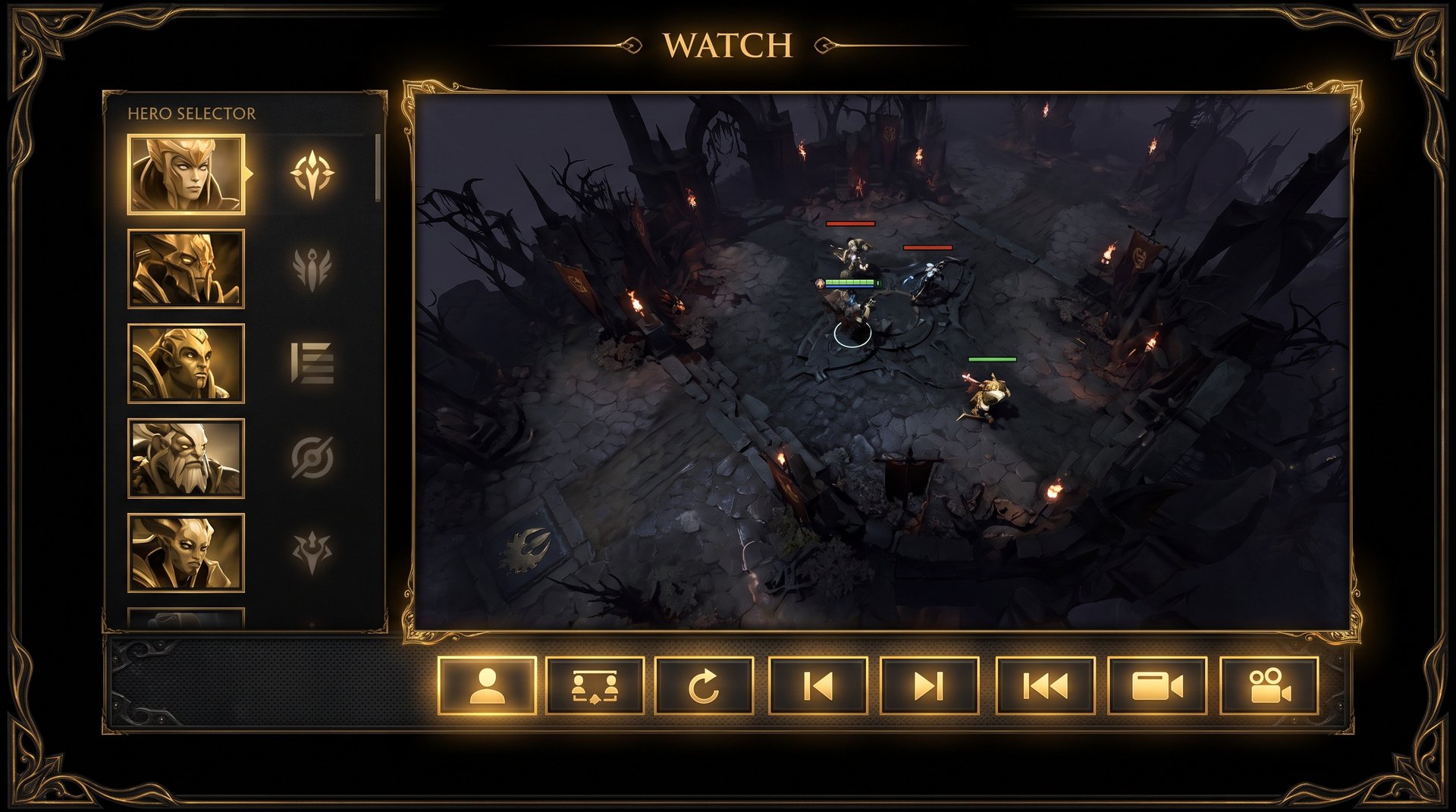
Dota 2 has a built-in spectator system that lets you watch any live or recently played match directly in the game client. There is no separate software to download. The spectate interface is folded into the Watch tab, which appears in the main menu between the Play and Learn buttons.
Spectating in the client gives you capabilities that broadcast streams cannot match. You choose your own camera angle instead of following the production director’s cut. You can follow a single hero for an entire game to understand their decision-making pattern. You can pause, rewind with DVR, and replay any fight from multiple perspectives. For anyone serious about improving at Dota 2, the spectate system is one of the most underused learning tools in the game.
During major tournaments like The International, Valve enables live spectating directly through the client for most main event and group stage matches. The delay is built in — usually around two to three minutes during live games — but you can reduce it on replays once the match finishes. DPC league games and third-party tournaments may or may not be available depending on broadcast agreements.
Two Types of Spectating: Live vs Replay
When you open the Watch tab, you will see two categories of content.
- Live games: Matches currently being played. During TI these are the tournament games as they happen. The feed has a built-in delay of roughly two to three minutes to protect against stream sniping at LAN venues.
- Replays: Matches that have already finished. Replays have no delay and you can scrub freely through the timeline. Your own recent ranked matches appear here within about 10 minutes of the game ending.
Both modes share the same camera controls and DVR system. The main difference is that live games have the minimum-delay restriction and you cannot scrub backwards past the delay window, while replays give full timeline access.
How to Open the Watch Tab in Dota 2
Starting a spectate session takes less than 30 seconds once you know where everything is.
- Launch Dota 2 and wait for the main menu to load.
- Click “Watch” in the top navigation bar. It sits between “Play” and “Learn.”
- The Watch panel opens with three sub-sections along the left side: Live, Tournaments, and Replays.
- For TI matches, click Tournaments. The current live tournament — The International 2026 during the event — will appear at the top of the list.
- Click the tournament name to expand the bracket or schedule view, then click any live match tile to enter the spectator lobby.
- The game loads and you enter as a spectator with a separate interface from the normal HUD.
The Watch Tab Sub-Sections Explained
Live: Shows all public matchmaking games that have been flagged as spectatable by players, plus any ongoing tournament broadcasts. The default sort is by viewer count, which puts the highest-profile games at the top. During TI, the main stage games will consistently have tens of thousands of spectators in the client alone.
Tournaments: A curated directory of organized competitions with bracket data, team logos, and scheduled match times. This is your primary destination during TI. The interface shows which games are currently live, which are upcoming, and which have replays available. Clicking a completed match here takes you directly to the replay download and play interface.
Replays: Your personal replay history plus any replays you have downloaded from the community or from watching tournament matches. Replay files are stored locally after you download them from the Watch tab or after your own games finish. They do not stay available forever — replays on the server expire after a certain period (historically 7 to 10 days for public matchmaking, longer for major tournament games) so download anything you want to keep.
Spectating TI 2026 Games Live
The International is the only time of year when the Dota 2 client’s spectate system operates at true broadcast scale. During the group stage and main event, every official match is available through the Watch tab within seconds of the game starting. Here is the exact workflow to watch TI games live in the client.
Step-by-Step: Entering a Live TI Match
- Open Dota 2 and go to Watch > Tournaments.
- Find The International 2026 in the tournament list. It will be pinned to the top during the event.
- Click the event card. You will see the live bracket with match tiles. Currently live games have a pulsing indicator.
- Click the live match tile for the game you want to watch.
- A preview panel appears on the right showing the two teams, current game time, and the number of in-client viewers.
- Click “Watch Live” to enter the game. The client loads the live feed, which takes about 15 to 30 seconds.
- You drop into the game at the current live point, subject to the built-in spectate delay.
What You See When You Enter
The spectator HUD is different from the playing HUD. At the top of the screen you see both teams’ hero icons with real-time health and mana bars. Gold totals, kill scores, and net worth graphs are always visible. The minimap runs in the bottom-left corner as normal but heroes from both teams are fully visible — there is no fog of war from a spectator’s perspective unless you switch it on manually for a coaching exercise.
The bottom-center panel shows the game clock and a DVR timeline bar. The right side of the screen has a hero-select panel that lets you jump to any hero’s perspective instantly. Above that is a director control toggle that switches between the automatic broadcast camera and manual control.
Using DVR Rewind While Spectating
DVR — Digital Video Recording — is the ability to rewind to an earlier moment in the game while still technically watching a live match. Dota 2 supports this natively in the spectate view. It is one of the most powerful features for learning, because you can instantly rewind to watch a teamfight from the beginning rather than waiting for the caster’s replay cut.
How DVR Works in Practice
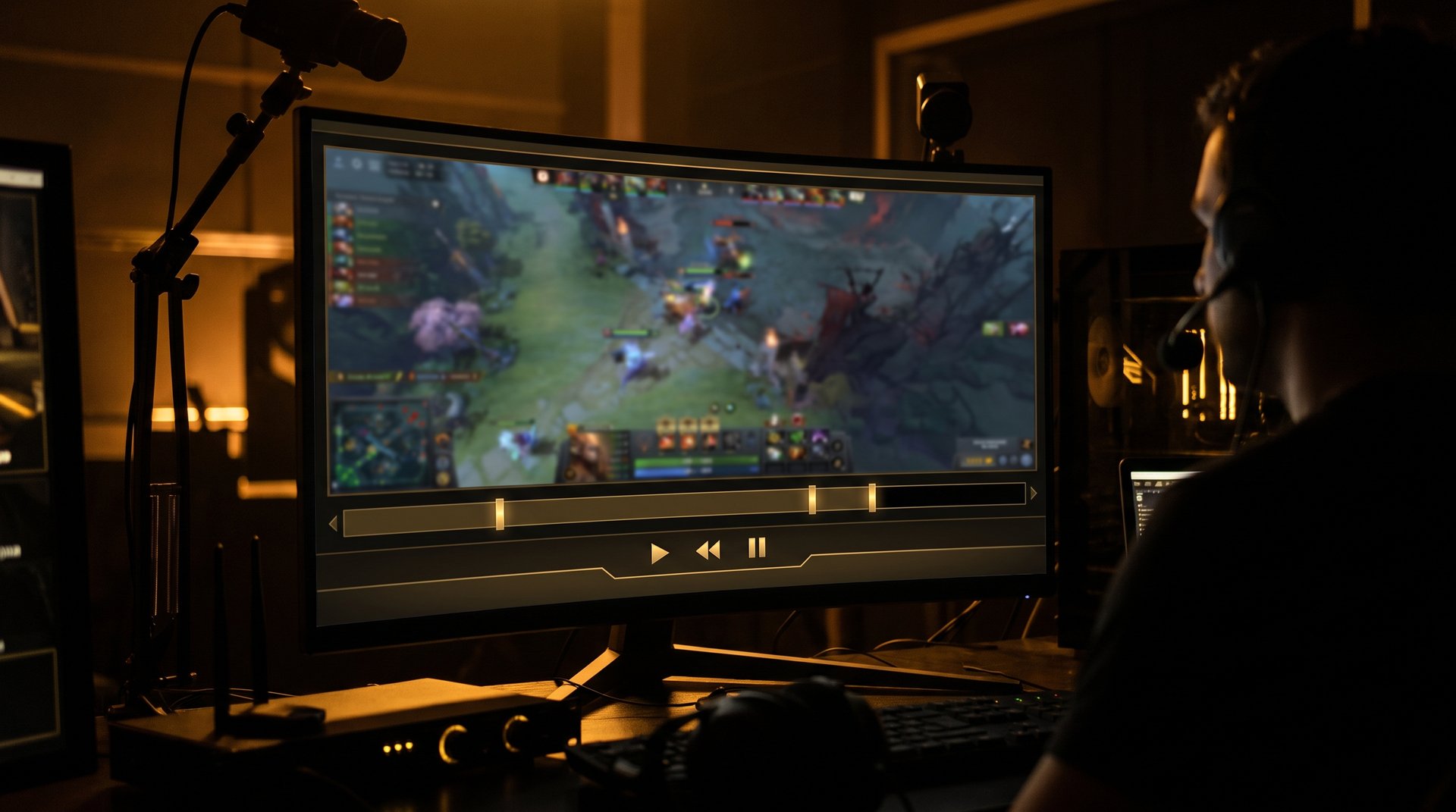
When you are spectating a live game, the DVR timeline appears at the bottom of your screen. It looks like a progress bar with two markers: the live edge (the rightmost point, always moving forward) and your current viewing position (where you are right now in the timeline).
To rewind, click and drag your viewing position marker to the left. The game will play back from that point. You are now watching a buffered version of the live game that was recorded client-side. The live edge continues to advance in real time. You can let playback run to catch back up to the live edge, or stay rewound to analyze a specific passage of play.
DVR Controls Reference
- Click and drag the timeline marker: Manually scrub to any point in the DVR buffer.
- Click the live edge indicator: Jump back to the live feed instantly. This is the small “LIVE” badge on the far right of the timeline.
- Spacebar: Pause and unpause the spectator view. Works both in DVR and at the live edge.
- Right arrow key: Jump forward 10 seconds.
- Left arrow key: Jump backward 10 seconds — this is the fastest way to rewatch a fight that just happened without fully scrubbing the timeline.
- Shift + Right/Left: Jump forward or back 30 seconds.
The DVR buffer extends back to the beginning of the in-client session. If you joined the game at minute 15 and want to see what happened at minute 10, you cannot — you would need the full replay, which becomes available after the match ends. But everything since you opened the spectate window is buffered.
DVR in Full Replays vs Live Games
In a full replay (post-game), the DVR concept becomes a standard scrubber with no live-edge restriction. You can jump to any game time instantly. This is far more useful for deep review sessions. If you want to study the TI-winning team’s draft execution and laning decisions from game one, find the completed replay in the Tournaments section and scrub freely.
Switching to Per-Player Camera View
The default director camera in Dota 2 spectating is an automated follow-cam that tries to find the most interesting action on the map. It is decent during calm moments but can be disorienting during five-on-five fights when it snaps between heroes rapidly. The per-player camera gives you direct control over which hero you are watching.
How to Switch to a Hero’s Perspective
On the right side of the spectator HUD there is a panel showing all ten hero portraits — five from Radiant, five from Dire. Each portrait shows the hero’s current health and mana as a small bar. To switch to any hero’s perspective:
- Click a hero portrait in the right-side panel. The camera immediately jumps to that hero’s current position.
- Your view is now locked to that hero’s camera perspective. The hero moves and the camera follows automatically, just like playing that hero normally.
- You can still move the camera manually by moving the mouse to the screen edge or using the arrow keys — this breaks the hero-lock and returns you to free camera.
- To re-lock to the hero after manually moving the camera, press F1 through F5 on the Radiant side or F6 through F10 on the Dire side. These are the same hero-select hotkeys used in team play and they work in spectate mode.
Why Per-Player Camera Changes Everything
Watching a single player for an entire TI game is a completely different educational experience from following the director camera. When you lock onto a position 4 support, you see exactly where they ward, when they rotate, how they decide when to commit their stun versus save it, and what they do during the three minutes when no fight is happening. That dead time is invisible to the production broadcast but enormously instructive to a player trying to improve their own support game.
If you are working to understand the MMR bracket system and climb through it, watching how an Immortal-ranked player handles the same hero you are trying to learn — in the same role, during a world-class match — is the fastest possible passive-improvement method. The client’s per-player camera makes that free and available for every TI match.
Spectator Fog Toggle
By default, spectators see both teams’ heroes at all times. If you want to simulate the fog-of-war experience of playing a specific role — useful for coaching exercises where you want to test your own decision-making — there is a fog-of-war toggle in the spectator settings panel (the gear icon in the top-right of the spectator HUD). Enable it and set it to follow one team’s vision. Now you only see what that team can see, which is a realistic simulation of the in-game experience from their perspective.
The Spectate Delay — Explained
All live Dota 2 spectating has a mandatory delay. This is a feature, not a bug. Here is why it exists and what your options are.
Why the Delay Exists
Stream sniping — using a live broadcast to gain real-time information about an opponent’s position — has been a problem in esports since streaming began. At a LAN venue like TI, professional players are sitting in isolated booths. If a live feed with zero delay existed, someone in the audience could theoretically signal information to a player. The built-in delay eliminates this vector.
During TI, the delay is set by Valve to approximately 2 to 3 minutes for most games. The exact value can vary by tournament configuration.
How to Check the Current Delay
When you are in spectate mode on a live game, look at the DVR timeline. The gap between the rightmost point of the timeline (where the live edge is) and your current position represents your delay. If the live edge is at game time 18:30 and you are watching game time 16:00, your total offset is approximately 2.5 minutes.
Can You Remove the Delay?
You cannot remove the delay on a live game. The minimum you can be from the live edge is whatever Valve has set for that specific tournament. You can be further behind the live edge if you have rewound with DVR, but you cannot get ahead of or equal to the live edge.
Once the match ends and the replay becomes available — usually within 10 to 15 minutes of the final GG — you can watch the full replay with zero delay and full scrubbing.
Spectate Features Quick Reference
| Feature | How to Access | Works in Live? | Works in Replay? |
|---|---|---|---|
| Watch tab entry | Main menu > Watch | Yes | Yes |
| Tournament browser | Watch > Tournaments | Yes | Yes |
| Per-player camera | Click hero portrait / F1-F10 | Yes | Yes |
| Free camera | Mouse to screen edge or arrow keys | Yes | Yes |
| DVR rewind | Click and drag DVR timeline marker | Yes (buffer only) | Yes (full timeline) |
| 10-second jump | Left / Right arrow keys | Yes | Yes |
| 30-second jump | Shift + Left / Right | Yes | Yes |
| Pause / unpause | Spacebar | Yes | Yes |
| Speed control (0.5x to 4x) | Replay controls panel | No (live only) | Yes |
| Fog-of-war toggle | Spectator settings gear icon | Yes | Yes |
| Net worth graph | Always visible top-center | Yes | Yes |
| Build viewer (items + abilities) | Click hero in portrait panel | Yes | Yes |
| Spectate delay removal | Not available on live games | No | Yes (no delay) |
| Watch via friend list | Right-click friend > Watch Game | Yes | No |
In-Client Spectating vs Twitch vs YouTube
You have three main ways to watch TI: the Dota 2 client, Twitch, and YouTube. Each has real advantages and tradeoffs.
The Dota 2 Client
The client gives you complete camera control, DVR rewind, per-player perspective, full HUD data (gold, items, cooldowns), and no forced commentary. The delay is similar to official streams because Valve applies the same delay server-side. The major downside is that the client requires a Dota 2 installation and a PC capable of running the game.
Twitch and YouTube Streams
Official Valve TI streams on Twitch and YouTube have professional commentary, production graphics, and replay cuts from the broadcast team. The delay on the stream is often longer than in-client due to streaming infrastructure latency on top of the mandatory game delay. You also give up camera control — you watch what the broadcast director chooses to show you.
Which to Use for Learning
For passive entertainment, the official Twitch or YouTube broadcast is superior. Professional casters provide analysis and the production highlights key plays. For active learning — studying a specific hero, watching a position 3 player’s map movement, or analyzing a team’s draft and wave management — the client’s per-player camera and DVR make it a dramatically better tool. Serious players use both: the stream on a secondary monitor for the broadcast perspective, the client on the primary for targeted hero analysis.
Learning from TI Pro Replays to Improve Your MMR
The most underused feature in the entire spectate system is post-game replay review. Once a TI match ends, the replay is available through Watch > Tournaments. You can download it and watch it at up to 4x speed, pausing to examine every detail. Here is how to make this actually useful for your ranked games.
The One-Hero Method
Pick a single hero you are trying to add to your pool. Find three recent TI games featuring that hero. Watch all three replays locked to that hero’s perspective using F1-F10. Your goal is not to watch the fights — it is to watch the decision points between fights. Where does the hero ward? When do they abandon farm to rotate? What items do they buy and in what order? How do they recover when their team is behind?
This method works because professional players at TI play heroes at a level of optimization that simply does not appear in YouTube guides or tier list discussions. The specific micro-decisions — which camp to clear after a lost fight, how far to push a wave before pulling back — are visible in the replay in a way that no tutorial captures. Three replays of the same hero will give you a deeper understanding of how to play it than 30 games of solo experimentation.
Watching Smarter With the Net Worth Graph
The net worth graph at the top of the spectator HUD shows which team is ahead in gold at every moment of the game. While reviewing a replay, watch for the moments when the graph swings dramatically. Those swings mark the pivotal fights, successful smoke ganks, and objective trades. Scrub to those moments first. You will cover the most important 20 minutes of the game in a 10-minute review session rather than watching the full hour.
Study Drafting by Rewinding to Minute Zero
In full replays you can scrub back to game time 0 and watch the picking phase. TI drafts are studied by the entire competitive Dota 2 community. Pay attention to ban sequence, priority picks, and lineup synergies. High-level draft reading does not translate directly to pub games — the hero pool and player skill are different — but understanding why a lineup works at TI makes you a better drafter at any MMR bracket, which is a genuine competitive edge when your teammates are open to suggestions.
If you want faster MMR gains while you are developing your hero pool, our Dota 2 MMR boost service can protect your rank during the learning phase so you are not sliding backwards while your mechanics catch up to your game sense.
Common Spectate Issues and How to Fix Them
The spectate system is generally reliable but a few specific problems come up repeatedly, especially during high-traffic events like TI when server load spikes.
Issue: Match Does Not Appear in the Tournament Browser
Cause: The game has not yet been registered in the client’s tournament feed, or there is a cache issue on the Watch tab.
Fix: Close the Watch panel and re-open it. If the match still does not appear, restart the Dota 2 client. During TI, matches typically appear in the tournament browser within 60 seconds of the game beginning.
Issue: “Game Not Available” Error When Entering Spectate
Cause: The game is live but the spectate slots are full (Valve limits concurrent spectators per match) or the game just ended and the slot has closed.
Fix: Wait 30 seconds and try again. If the match has ended, the replay will appear in the same tournament tile within 10 to 15 minutes.
Issue: DVR Timeline Is Not Visible
Cause: The spectator HUD may have the timeline minimized, or you are viewing in a mode where the default director interface is active.
Fix: Press F9 to toggle the spectator HUD. If that does not work, move the mouse to the bottom-center of the screen — the DVR bar auto-shows on hover even when minimized.
Issue: Per-Player Camera Jumps Away Unexpectedly
Cause: The director override is enabled. Dota 2 has an “auto-director” mode that will occasionally override your manual camera selection to highlight a key fight. This can be frustrating.
Fix: Look for the director toggle in the top-right area of the spectator HUD. Click it to switch from “Director” mode to “Free” mode. In Free mode, your camera selection sticks until you change it manually.
Issue: Replay Is Unavailable After the Match Ends
Cause: Tournament replays sometimes take up to 30 minutes to appear after a match, especially if the servers are under load during TI. Some DPC league matches have limited replay availability windows.
Fix: Wait and refresh the Watch panel. If you are looking for older TI replays that are not in the client, Valve’s official blog typically releases replay files in a community downloadable format after the event.
Issue: Very High Ping or Stuttering During Spectate
Cause: Spectating streams data from Valve’s relay network. During TI peak hours, the relay can be congested if you are on a distant server region.
Fix: In Dota 2 settings, go to Network and select a different spectate region if available. Alternatively, adding “-novid” to your Dota 2 launch options can reduce startup overhead and free memory for streaming playback.
Issue: You Cannot Find a Specific Player’s Live Game
Cause: Not all pub games are spectatable. Players can opt out of public spectating in their account settings.
Fix: If you are friends with the player, right-click their profile in your friends list and check for the “Watch Game” option. If that is greyed out, the player has disabled spectating or their game is private.
Watching TI Is the Fun Part — Winning Ranked Is the Goal
Use TI replays to study heroes and improve your decision-making. Then use your new knowledge in ranked — and if the MMR grind is holding you back while your game sense is already ahead of your bracket, TeamSmurf’s expert boosters can close the gap. We are the Dota 2-only service with real Immortal boosters who understand every role at every rank. If you are wondering whether boosting is worth the risk, read our full breakdown on whether Dota 2 boosting is safe — it covers everything Valve has actually done about boosted accounts.
Get Your MMR Boost Book a Coaching Session