Dota 2 Communication Guide: Master Pings, Chat Wheel & Team Coordination

Dota 2 is, at its core, a team game. Five players need to coordinate hero picks, lane assignments, item builds, rotations, teamfight execution, objective timing, and split-second decision-making–all in real time. The difference between a chaotic pub game and a well-coordinated team often comes down to one thing: communication. Yet most players never invest time in learning Dota 2’s extensive communication toolkit, and as a result, they leave massive amounts of potential coordination on the table.
In this comprehensive guide, we’ll walk you through every communication tool available in Dota 2: the ping system, alt-click shortcuts, chat wheel customization, voice chat best practices, and advanced shot-calling techniques. Whether you’re a quiet player who prefers pings to voice chat or a natural leader who wants to rally their team, mastering communication will directly translate to more wins and higher MMR.
Communication is one of the pillars our Coaching service focuses on, because even mechanically skilled players plateau when they can’t coordinate with their team effectively.
Table of Contents
- Why Communication Matters in Dota 2
- The Complete Ping System
- Alt-Click: The Most Underused Tool in Dota 2
- Chat Wheel Setup and Best Phrases
- Text Chat: When and How to Type
- Voice Chat Etiquette and Strategy
- Shot-Calling Basics
- Communication by Role
- Communication by Game Phase
- Dealing with Toxic Communication
- Language Barriers and Regional Servers
- Advanced Communication Techniques
- FAQ
Why Communication Matters in Dota 2
Let’s start with hard data. Multiple analyses of Dota 2 match data have shown that teams with more coordinated movements (players grouping together, rotating simultaneously, taking objectives as a team) win significantly more than teams where players operate independently. Communication is the mechanism that enables coordination.
Consider what communication achieves in a typical match:
- Gank prevention: A simple “missing mid” ping saves your carry’s life
- Objective coordination: “Let’s Rosh” gets 5 heroes moving together instead of 2
- Fight coordination: “I’ll initiate, follow up with stuns” turns a sloppy engagement into a clean wipe
- Resource management: “I need 200 gold for BKB, wait for me” prevents a premature fight
- Draft coordination: “Can you pick a stun We need lockdown” improves team composition
Every one of these communication acts directly impacts your win probability. A team that communicates well effectively plays at 1-2 brackets above their individual skill level. Conversely, a team of skilled players who don’t communicate plays far below their potential.
This is a consistent observation from our MMR Boost players: the most common difference between Ancient and Immortal games isn’t mechanical skill–it’s the quality and quantity of team communication.
The Complete Ping System
Pings are your most basic communication tool, and they’re available even when you’re dead, have no mic, or don’t share a language with your team. Dota 2’s ping system is more robust than most players realize.
Basic Ping Types
| Ping Type | Default Key | When to Use | What It Communicates |
|---|---|---|---|
| Regular Ping | Alt + Left Click (on map/ground) | General attention drawing | “Look here” / “Something is happening here” |
| Caution Ping | Alt + Left Click (on hero/danger area) | Warning about danger | “Be careful” / “Enemy here” |
| X Ping (Retreat) | Ctrl + Alt + Left Click | Telling someone to back off | “Get back” / “Don’t go there” |
| Gather Ping | Alt + Left Click (through chat wheel) | Rallying the team | “Group up here” / “Come to this location” |
Minimap Pings vs. Ground Pings
There’s an important distinction between pinging on the minimap and pinging on the game terrain:
- Minimap pings are visible to all allies regardless of their camera position. They show up as a marker on the minimap and play a sound. Use these for strategic callouts–marking enemy positions, suggesting objectives, pointing out wards.
- Ground pings are visible to allies who have that area in their camera view and also show on the minimap. They’re more precise for indicating exact positions during fights or lane phase.
Ping Etiquette
A few critical rules for effective pinging:
- Don’t spam pings. More than 3 pings in quick succession becomes noise, not signal. Your teammates will mute your pings if you spam.
- Be specific. Ping the exact location of the threat, not a vague area. If you see the enemy support rotating mid, ping their actual position and path.
- Ping proactively. Ping BEFORE the danger arrives, not after your ally is already dead. A warning ping 5 seconds early saves a life; a ping after the kill is just annoying.
- Use retreat pings to prevent bad fights. If you see your carry walking into a dangerous area or your team starting a fight they can’t win, X-ping to signal retreat. This is one of the most underused pings in lower brackets.
Pinging Specific Targets
You can ping specific units and objects to communicate detailed information:
- Ping an enemy hero: Draws attention to that hero’s position. Great for calling gank targets.
- Ping an allied hero: Can be used to suggest that hero should come to a location or to highlight their position for coordination.
- Ping a tower: Suggests pushing or defending that tower.
- Ping Roshan: Suggests doing Roshan or that the enemy is doing Roshan.
Alt-Click: The Most Underused Tool in Dota 2
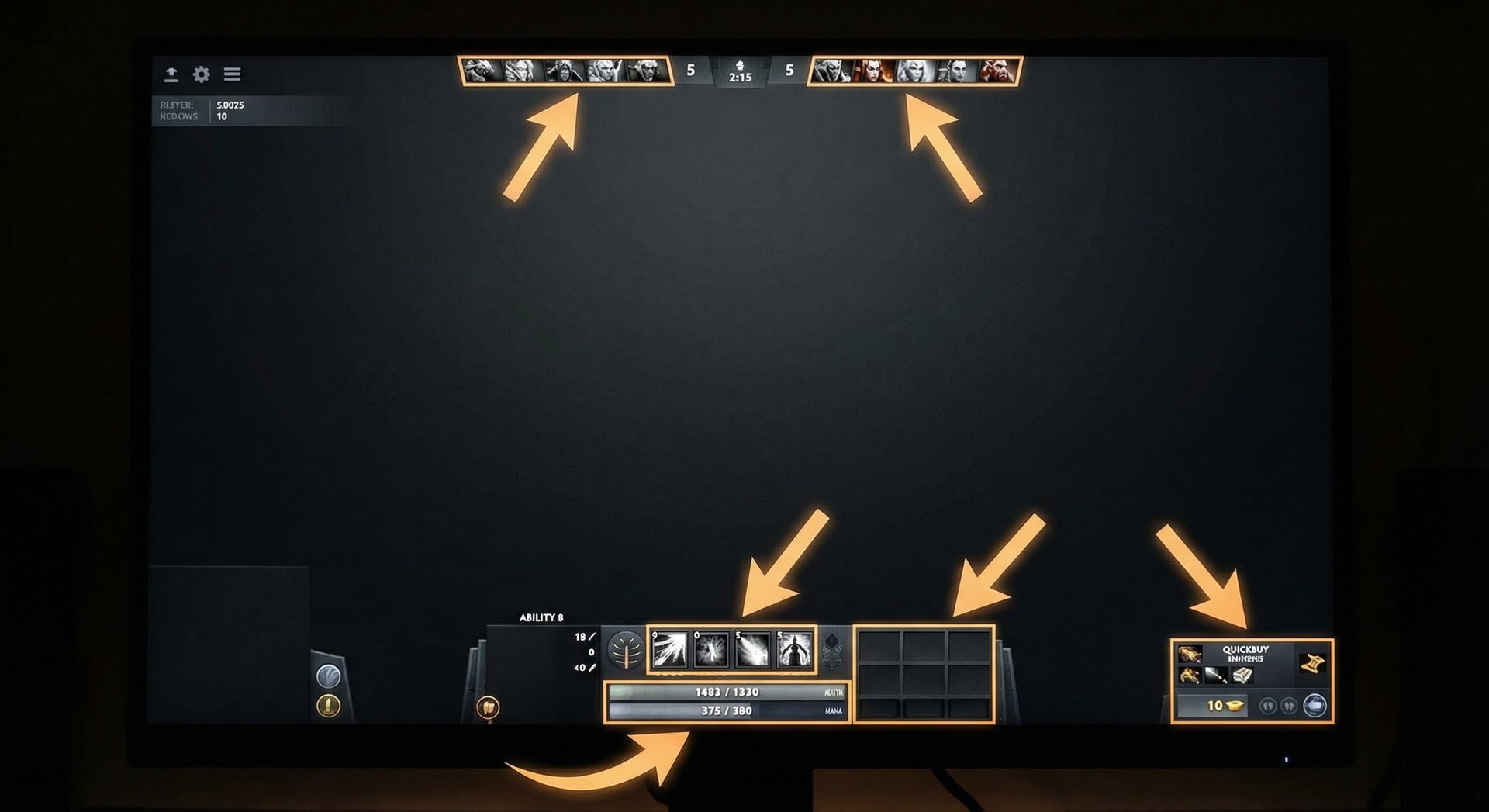
Alt-clicking is Dota 2’s secret weapon for communication. By holding Alt and clicking on various UI elements, you can instantly share critical information with your team in the chat log. Most players know about one or two Alt-click features, but the full list is staggeringly comprehensive.
Complete Alt-Click Reference
| Alt-Click Target | Chat Message Generated | Example Use Case |
|---|---|---|
| Your ability (off cooldown) | “Ability Name: Ready” | Tell team your ult is up for a fight |
| Your ability (on cooldown) | “Ability Name: On cooldown (Xs)” | Tell team to wait for your key spell |
| Your ability (not enough mana) | “Ability Name: Not enough mana (X/Y)” | Explain why you can’t use a spell |
| Your HP bar | “Health: X/Y (Z%)” | Show team you’re low and need to heal |
| Your mana bar | “Mana: X/Y (Z%)” | Show team you can’t cast spells |
| Item in inventory | “Item Name: Ready / On cooldown” | Show BKB status, Ult Stick charges, etc. |
| Item in quickbuy | “I need X gold for Item Name” | Ask team to wait before fighting |
| Gold display | “Current Gold: X (Reliable: Y)” | Show buyback status or item progress |
| Enemy hero portrait (top bar) | “Enemy Hero: Not visible” | Call missing heroes |
| Neutral item slot | “I have Neutral Item” or “No neutral item” | Coordinate neutral item distribution |
| Enemy ability (when visible) | “Enemy used Ability Name” | Track enemy cooldowns |
| Scan ability | “Scan is ready / on cooldown” | Suggest using scan or note availability |
| Glyph | “Glyph of Fortification: Ready / cooldown” | Coordinate tower defense |
| Buyback status | “Buyback: Ready / Not ready” | Critical for late-game decisions |
| Game clock | “Current Time: XX:XX” | Note timings (Roshan, power spike) |
The Most Important Alt-Clicks
While all of these are useful, some are game-changing if you use them consistently:
1. Alt-Click Your Ultimate: This should be habitual. Before any potential teamfight, Alt-click your ultimate to tell your team whether it’s ready. A team that knows everyone’s ult status makes dramatically better engage/disengage decisions. “Ravage: Ready” from your Tidehunter means “let’s fight.” “Ravage: On cooldown (35s)” means “wait.”
2. Alt-Click Enemy Portraits When Missing: The fastest way to call missing heroes. Instead of typing “ss mid,” just Alt-click the enemy mid’s portrait. It instantly broadcasts “Enemy Hero: Not visible” to your team. Do this every time an enemy leaves vision–it takes half a second and saves lives.
3. Alt-Click Your Item in Quickbuy: When you’re close to a critical item and don’t want your team to fight yet. “I need 400 gold for Black King Bar” tells your team to play safe for another minute.
4. Alt-Click Buyback: In late game, buyback status determines whether your team should fight. Alt-click your buyback button to show your team whether you can buy back. If your carry says “Buyback: Not ready,” your team should avoid risky fights.
5. Alt-Click Enemy Abilities: When you see an enemy use a key ability, Alt-click it to track the cooldown for your team. “Enemy used Black Hole” tells everyone it’s safe to group for the next 2-3 minutes.
Ctrl-Alt-Click Variations
Many Alt-click messages have a Ctrl-Alt-click variant that changes the context. For example:
- Alt-click an ability: “Ability: Ready”
- Ctrl-Alt-click the same ability: “Use Ability on me” (requesting a buff/heal)
Experiment with Ctrl-Alt-clicks on different UI elements to discover additional communication options.
Chat Wheel Setup and Best Phrases
The chat wheel is your customizable quick-communication tool. By pressing a key (default: Y) and selecting a direction, you can instantly send pre-set messages to your team. The chat wheel is faster than typing and works across language barriers because messages are translated into each player’s language.
How to Customize Your Chat Wheel
Go to Settings → Options → Chat Wheel. You can assign up to 8 phrases to your primary chat wheel and additional phrases to a secondary chat wheel. Choose phrases that cover the most common in-game communication needs.
Recommended Chat Wheel Setup
Here’s an optimized chat wheel layout used by many high-MMR players:
| Slot | Direction | Recommended Phrase | Why |
|---|---|---|---|
| 1 | Up | “Missing!” / “► Missing!” | Fastest missing call available |
| 2 | Up-Right | “Get back!” | Warning allies of danger |
| 3 | Right | “Push now” | Calling for objective pressure |
| 4 | Down-Right | “Group up” | Rally the team before fights/objectives |
| 5 | Down | “Well played!” | Positive reinforcement after good plays |
| 6 | Down-Left | “Roshan” | Suggesting or warning about Roshan |
| 7 | Left | “I’ll ward” | Letting team know you’re handling vision |
| 8 | Up-Left | “Need wards” | Requesting vision from supports |
Second Chat Wheel
Your second chat wheel (bound to a different key) should cover situational callouts:
- “Careful!” — for general danger warnings
- “Stun now!” — calling for lockdown in fights
- “I’m heading to the top/mid/bottom lane” — lane intention signals
- “Wait for me” — preventing premature engagements
- “Sorry” — acknowledging your own mistakes (reduces tilt)
- “Thanks!” — positive reinforcement
- “Affirmative” — confirming a plan
- “Current game is hard” — light humor to defuse tension
Seasonal and Battlepass Chat Wheel Sounds
Dota 2’s Battle Pass often includes unique chat wheel sounds (the famous “Lakad Matataaaag!” and similar). While these are primarily for entertainment, they serve a genuine communication purpose: they draw attention. A distinctive chat wheel sound can highlight an important callout better than a text-based phrase that might get lost in the chat log.
That said, don’t spam Battle Pass sounds just for fun in ranked games. Use them purposefully or save them for post-fight celebrations.
Text Chat: When and How to Type
Text chat (Enter to open, type, Enter to send) is the most flexible communication tool but also the slowest. You can’t last hit, move, or cast spells while typing. Here’s how to use text chat effectively:
When to Type
- During strategy/draft phase: This is the best time for text communication. Discuss hero picks, lane assignments, and general strategy before the game starts.
- During downtime: Walking back to lane, waiting to respawn, farming jungle passively. These are safe moments to type.
- When you need to communicate complex ideas: “Can we smoke bottom and then do Rosh after” is too complex for pings but takes 3 seconds to type.
When NOT to Type
- During fights: Never. Your hero stands still while you type.
- While laning against an aggressive opponent: They will kill you while you’re typing.
- To flame: Negative chat messages tilt your team and reduce your win probability. Period.
Effective Text Chat Habits
- Keep messages short: “smoke” is better than “hey guys should we buy a smoke and go find a kill”
- Use abbreviations: ss = missing, b = back, go = engage, w8 = wait, rosh = Roshan, def = defend
- Be specific: “gank top” is better than “gank.” “rosh in 2 min” is better than “rosh soon.”
- One message, one idea: Don’t write paragraphs. Split thoughts into separate short messages if needed.
Voice Chat Etiquette and Strategy
Voice chat is the highest-bandwidth communication tool in Dota 2. When used well, it’s like having a team captain calling plays in real time. When used poorly, it’s a distraction that tilts the entire team.
Setting Up Voice Chat
Go to Settings → Audio → Voice Chat. Key settings:
- Push-to-talk vs. Open mic: Always use push-to-talk. Open mic broadcasts your keyboard, breathing, and background noise, which is annoying and distracting.
- Bind push-to-talk to an accessible key: Something you can press without lifting fingers from your main keys. A mouse side button is popular.
- Test your audio levels: Your mic shouldn’t be too loud or too quiet. Ask a friend to give feedback, or listen to your own recordings.
Voice Chat Best Practices
Be concise. Voice chat in Dota 2 should be like military radio communication: short, clear, essential. Say what needs to be said and release the talk key.
Good voice comms:
- “Storm no ult” (3 words, critical info)
- “Smoke now, go Rosh” (4 words, clear plan)
- “Back back back” (urgent retreat)
- “I BKB go, follow up” (fight plan in 5 words)
Bad voice comms:
- “I think maybe we should probably try to go Roshan if you guys want to, I dunno” (indecisive, long-winded)
- “You’re such a noob, why did you go there” (toxic, unproductive)
- “*keyboard sounds* *heavy breathing* *background TV*” (open mic garbage)
- Playing music over voice chat (muted immediately by everyone)
Use voice for urgent, time-sensitive calls. “They’re smoking” or “Rosh now” are voice-worthy. “Can someone buy wards” can be a ping or text message.
When to Mute
Muting is a powerful tool for protecting your mental state. Mute a player if they are:
- Consistently flaming or being toxic
- Playing music or have bad mic quality
- Making calls that are consistently wrong and tilting you
- Arguing with another teammate (mute both)
There’s no shame in muting. A quiet game where you focus on your own play is better than a toxic game where voice chat destroys your concentration. You can always communicate through pings and Alt-clicks even with voice muted.
Shot-Calling Basics
Shot-calling is the art of making in-game decisions and communicating them to your team in a way that gets everyone to act together. Not everyone needs to be a shot-caller, but every team benefits from having one.
Who Should Shot-Call
Ideally, the shot-caller is:
- A player with good game sense and map awareness
- Someone who can communicate clearly without tilting
- Typically the position 4 or 5 (supports have more mental bandwidth since they’re not focused on last-hitting)
- The most experienced player on the team (if identifiable)
However, anyone can (and should) make calls when they see something important. A carry player who spots the enemy smoked should call it out immediately–don’t wait for the “designated shot-caller.”
Types of Calls
Information calls: Sharing facts. “Storm is bot.” “They have no wards on this side.” “Aegis expires in 30 seconds.” These don’t tell the team what to do–they provide data for the team to make decisions.
Objective calls: Directing team actions. “Push mid.” “Take Roshan.” “Def top.” These are specific instructions that tell the team what to do next.
Fight calls: Coordinating teamfight actions. “I go in, Tide follow with Ravage.” “Focus the Sniper.” “Disengage, their BKBs are up.” These are time-sensitive and require voice chat.
Timing calls: Based on the game clock. “Power rune spawning in 30 seconds, careful.” “Their Rosh timer should be up around 25 minutes.” “Night time in 1 minute, careful about ward vision.” These show advanced game sense and help the team prepare.
How to Make Good Calls
Be decisive. A mediocre plan executed by 5 people beats a perfect plan executed by 2 people because the other 3 were confused. Make a clear call and commit to it. “We’re going Rosh NOW” is better than “Should we Rosh What do you guys think”
Provide reasoning (briefly). “Push mid, they have no buyback” is more convincing than just “push mid.” The reasoning helps your team buy into the call.
Accept disagreement gracefully. If your call gets vetoed by the team, don’t force it. A 5-man play in the “wrong” direction beats a split team.
Own your mistakes. If your call leads to a bad outcome, say “my bad, bad call” and move on. This builds trust with your team for future calls.
Shot-calling is a skill that improves with practice. Our Coaching service includes communication and shot-calling coaching for players who want to develop their leadership skills in-game.
Communication by Role
Different roles have different communication responsibilities. Here’s what each role should be communicating and when.
Position 1 (Carry)
| Communication | When | Method |
|---|---|---|
| “I need X gold for item” | Before team commits to fight | Alt-click quickbuy |
| “Buyback ready/not ready” | Before late-game fights | Alt-click buyback |
| “I can fight” / “I can’t fight yet” | When team is grouping | Voice or text |
| “I’m farming [area]” | When team might need you elsewhere | Ping location |
| “Need help” / target pings | When getting ganked | Ping + voice |
Position 2 (Mid)
| Communication | When | Method |
|---|---|---|
| “Missing mid” / enemy portrait Alt-click | When enemy mid leaves lane | Alt-click + ping direction |
| “Rune top/bot” | Before rune spawns | Ping rune location |
| “I can gank [lane]” | When you have kill potential | Voice or chat wheel |
| “Enemy mid has [item]” | When you notice key items | Text chat |
| “I need gank help mid” | When losing lane badly | Voice or text |
Position 3 (Offlane)
| Communication | When | Method |
|---|---|---|
| “Enemy carry has [item]” | When you spot key items | Text chat |
| “I’m initiating in 3 seconds” | Before teamfight initiation | Voice chat |
| “I’ll frontline, stay behind me” | During pushes | Voice chat |
| Ult/BKB status | Before every potential fight | Alt-click abilities |
| “I’m cutting their wave” | When creep cutting | Ping + text |
Position 4 (Soft Support)
| Communication | When | Method |
|---|---|---|
| “Rotating [lane]” | Before leaving your lane | Ping path + voice |
| “Smoke ready, let’s go” | When smoke is in stock and you want to gank | Voice + Alt-click smoke |
| “I’ll stack [camp]” | Near minute mark | Ping camp |
| Ward/deward callouts | When warding or dewarding | Ping locations |
| “Their [hero] is at [location]” | When you spot enemies during rotations | Ping + voice |
Position 5 (Hard Support)
| Communication | When | Method |
|---|---|---|
| “I’m pulling” | Before pulling creeps | Ping camp |
| “Wards placed at [location]” | After warding | Ping ward spots |
| “I need to deward [area]” | When you suspect enemy wards | Ping suspected area |
| “Save me” / “I’m sacrificing for you” | During ganks on carry | Voice + pings |
| Overall game plan calls | Throughout the game | Voice chat |
For a deeper dive into support-specific communication around vision, check our Dota 2 Warding Guide.
Communication by Game Phase
Pre-Game / Draft Phase
Communication starts before the horn. During the draft, you should:
- Declare your preferred role: Use the role queue system, but also verbally confirm lanes if there’s any confusion.
- Suggest hero synergies: “If you pick Enigma, I’ll go Shadow Demon for the combo.”
- Warn about enemy picks: “They picked Huskar, someone needs to get Ancient Apparition.”
- Discuss the general game plan: “We have a late-game lineup, let’s play safe early and scale.”
Laning Phase (0-10 Minutes)
Key communications during laning:
- Missing calls: Every time an enemy hero leaves your vision, call it. Every single time. Make it a reflex.
- Gank alerts: “Support is missing, careful mid.” Be specific about which hero is missing and which lane might be targeted.
- Pull/stack requests: Carries should communicate when they want pulls. Supports should announce stacks.
- Power spike alerts: “I hit level 6, ready to fight” or “Enemy TA just got Deso, be careful.”
- Rotation requests: “I need help top, getting dived” or “Mid is free kill, come gank.”
Mid Game (10-25 Minutes)
The mid game requires more strategic communication:
- Objective calls: “Tower is low, push mid.” “Rosh in 2 minutes, group up.” These should be the primary focus.
- Smoke calls: “Smoke is ready, let’s gank their carry” or “Smoke for Rosh.”
- Item timing alerts: “I have BKB now, ready to fight” or “Their carry just finished Butterfly.”
- Map movement pings: Keep pinging enemy hero locations as you spot them. Constant information flow helps everyone make better decisions.
Late Game (25+ Minutes)
Late-game communication is about precision and buyback tracking:
- Buyback status: Everyone should Alt-click their buyback before every fight. This determines whether you can take a fight at all.
- Roshan timer: Keep track and communicate when Rosh is about to respawn.
- Aegis timer: “Aegis expires in X seconds” can dictate when to fight.
- Fight or farm decisions: “We can’t fight for 40 seconds [ult cooldown], farm safely.” This prevents bad engagements.
- Throne calls: In the ultra-late game, communicate clearly about going for the throne vs. playing safe. One miscommunication can cost the game.
Dealing with Toxic Communication
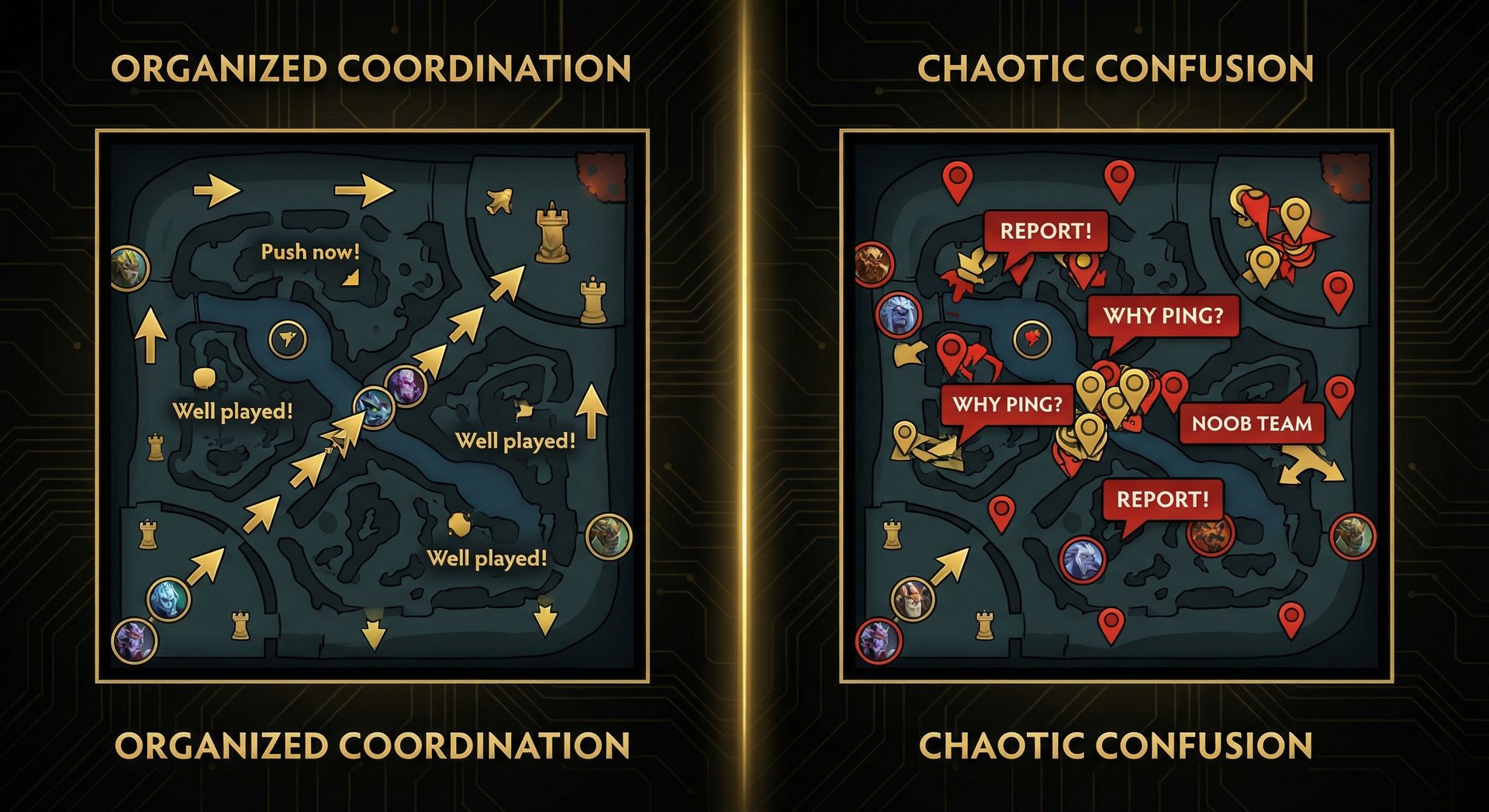
Let’s address the reality: Dota 2 has a reputation for toxicity, and some of your teammates will use communication tools to flame rather than coordinate. Here’s how to handle it:
The Mute Button Is Your Friend
If a player is being toxic–flaming, blaming, being racist, screaming into their mic–mute them immediately. You can mute text and voice separately by clicking the speaker/chat icons next to their name on the scoreboard.
Studies consistently show that engaging with toxic players makes your performance worse. The seconds you spend typing a response are seconds you’re not farming, fighting, or making plays. Mute and move on.
Positive Communication Counters Toxicity
One of the most effective anti-tilt strategies is proactive positive communication. If a teammate makes a good play, say “nice” or “wp” (well played). If someone makes a mistake, say nothing–or “no worries, we got this.” Positive communication creates a team atmosphere where people play better, try harder, and cooperate more.
This isn’t just feel-good advice–it’s a proven strategy for winning more games. Teams with positive communication have measurably higher win rates. Our MMR Boost players consistently note that the easiest games to boost in are the ones where the team is communicating positively.
Don’t Be the Toxic One
Self-reflection time: are you contributing to the toxic environment If you find yourself typing angry messages after deaths, blame-shifting to supports for no wards, or sarcastically pinging allies who make mistakes–you’re part of the problem. Every toxic message you send reduces your team’s win probability. Replace that energy with constructive communication and watch your win rate climb.
Language Barriers and Regional Servers
Dota 2 is a global game, and you’ll frequently be matched with players who speak different languages. This is especially common on servers like EU West, where you might have English, Russian, and Spanish speakers on the same team.
Cross-Language Communication Tools
- Chat wheel phrases are auto-translated: When you use a chat wheel phrase, it appears in each player’s selected language. This is the single most effective cross-language tool. Use chat wheel over text chat when playing with non-English speakers.
- Pings are universal: A danger ping means danger in every language. Use pings liberally.
- Alt-click messages are translated: “Ravage: Ready” appears in the recipient’s language.
- Simple English words are widely understood: “go,” “back,” “ward,” “rosh,” “push,” “def” are understood by most Dota 2 players regardless of native language.
Tips for Multi-Language Teams
- Default to chat wheel and pings rather than text/voice
- Don’t flame someone for not speaking your language
- Use in-game drawings on the minimap (hold Ctrl and draw on the minimap) to illustrate plans visually
- Be patient–the other player is probably trying to communicate too
Advanced Communication Techniques
Minimap Drawing
Hold Ctrl and click-drag on the minimap to draw. This is incredibly useful for:
- Drawing an arrow showing where you plan to gank
- Circling an area where you suspect enemy wards
- Drawing an X on an area your team should avoid
- Illustrating a smoke route
Minimap drawings fade after a few seconds, so they’re best used for immediate, time-sensitive communication.
Hero-Specific Communication
Some heroes have unique communication needs:
- Io (Wisp): Needs to communicate Relocate targets clearly. Ping the exact location and say “relocate top” before executing.
- Chen: Needs to announce Holy Persuasion sends. “Sending you back” prevents confusion when allies suddenly teleport to base.
- Invoker: Should call which combo they’re planning in teamfights so the team can follow up appropriately.
- Enigma: “I have Black Hole, waiting for 3-man” sets fight expectations.
- Oracle: “I’m using Fate’s Edict on you” prevents confusion about the disarm + magic immunity interaction.
Timer Tracking Communication
Advanced players track and communicate key timers:
- Roshan timer: Note the time when Roshan dies. He respawns 8-11 minutes later. Communicate “earliest Rosh 28:00” to your team.
- Buyback cooldowns: Track enemy buyback usage and cooldowns (8-minute cooldown). “Their carry has no buyback for 5 more minutes” is a critical call.
- Glyph timer: Track when the enemy uses Glyph of Fortification (5-minute cooldown) so your team knows when to push.
- Aegis timer: Aegis expires 5 minutes after pickup. Communicate this to create urgency.
Reading Enemy Communication
Pay attention to enemy all-chat. While most all-chat is banter, enemies sometimes reveal information accidentally:
- “Report mid” — their team is tilted, play aggressively to increase tilt
- “GG” from an enemy — they’ve mentally given up, push your advantage
- Enemy players arguing — the team is fractured, punish the lack of coordination
Conversely, be careful what you say in all-chat. Don’t reveal your team’s plans or tilt status to the enemy. For more on the mental aspects of Dota 2 gameplay, see our guide on countering smurfs, which covers the psychological dimension of competitive play.
FAQ
Ready to Climb Start Your Boost Today
Team Smurf is the #1 rated Dota 2 boosting service. Immortal-rank boosters, maximum safety, competitive pricing, 24/7 support.
Conclusion
Communication in Dota 2 isn’t just about talking–it’s about sharing the right information at the right time through the right channel. A well-placed ping prevents a death. A clear shot-call wins a teamfight. A positive “wp” keeps your team’s morale up when things look bleak. The tools are all there: pings, Alt-clicks, chat wheel, text, voice, minimap drawing. The question is whether you’ll use them.
Start with the basics: call missing heroes, Alt-click your ultimate status before fights, and set up your chat wheel with useful phrases. Then build up to voice communication, shot-calling, and advanced timer tracking. Each layer of communication you add makes you a better teammate and, ultimately, a better Dota 2 player.
Your MMR doesn’t just reflect your ability to last hit and press buttons. It reflects your ability to play with four other humans toward a common goal. Communication is the bridge between individual skill and team success. Build that bridge, and the wins will follow.
For personalized coaching on communication, game sense, and every other aspect of Dota 2, visit our Coaching page. And for more guides on improving your Dota 2 gameplay, explore our full blog at TeamSmurf.com.